A match can turn choppy even though it felt smooth a few minutes earlier. Your character may stop responding, or the screen may stutter during a fight. Both can disrupt a close game, but they often point to different causes.
Lag can come from your phone or your connection. Changing every setting at once makes it harder to find the cause and keep a useful fix. A few targeted checks give you a clearer starting point.
First, identify what the lag looks and feels like. Then try simple device changes before checking your connection or heat. You can use that order to narrow the problem without losing settings that already work.
Key Takeaways
- Delayed actions and reconnects often point to a connection problem.
- Choppy visuals or falling FPS can point to phone performance.
- Restarting and pausing transfers are low-risk first checks.
- Lower settings can help your phone keep a steadier frame rate.
- Heat can make performance decline during a longer session.
- Change one setting at a time so you can judge the result.
A brief symptom check comes next, so you can choose a useful fix instead of guessing.
Is the Lag Coming From Your Connection or Your Device?
A character rubber-banding across the screen points to a different problem than an image that visibly stutters. Delayed actions, reconnects, and rubber-banding with steady FPS suggest a connection issue.
Choppy visuals or falling FPS point more toward the phone’s rendering workload. Frame pacing means how evenly a game delivers successive frames to the screen. Uneven frame pacing can feel rough even when the frame rate looks high.
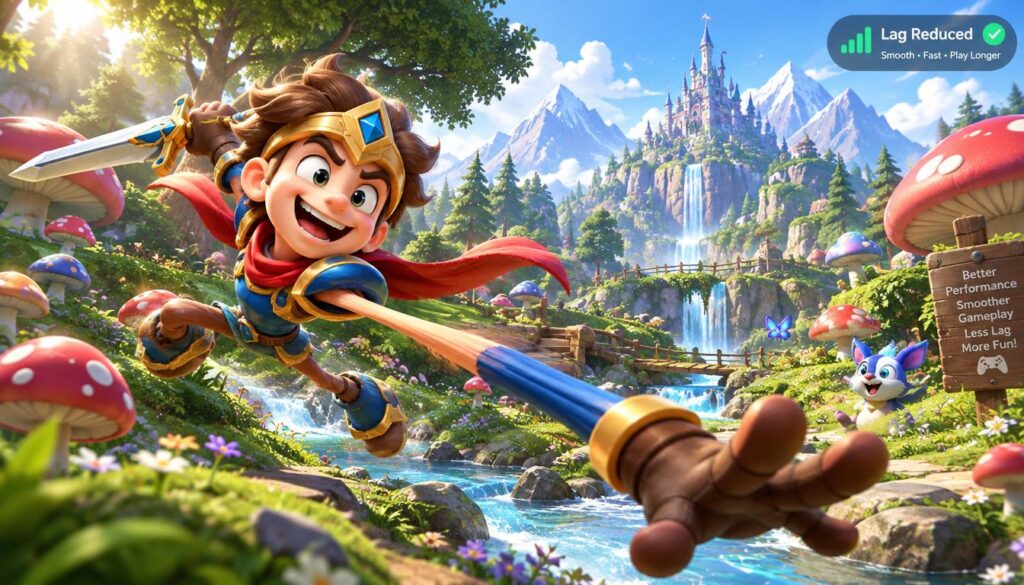
Steady FPS with delayed actions suggests a connection issue; stuttering visuals suggest device performance.
Symptoms can overlap, so check the game’s ping and FPS indicators when available. Ping is the delay in data traveling between your device and the game server. Compare a smooth offline game with a laggy multiplayer session to help separate network lag from device lag.
| Symptom | Likely area to investigate | First useful check |
|---|---|---|
| Delayed actions or reconnects with stable FPS | Connection | Compare Wi-Fi and mobile data |
| Stuttering visuals with FPS drops | Rendering workload | Lower one graphics setting |
| FPS worsens as the phone heats | Sustained workload and temperature | Cool the device and retest |
| Crashes or missing resources after an update | One-game issue | Confirm downloads and use repair |
For more ways to identify network lag and device lag, use this mobile game lag troubleshooting guide. A single clue is not proof, so compare the same game and scene when possible.
Connection symptoms call for connection checks. Visual stutters or heat-related drops point you toward device settings and workload.
Which Quick Checks Should You Try First?
A game may slow down while a large update or cloud upload is running. Start with low-risk checks that reduce competing activity before changing deeper settings.
A restart can clear temporary processes that are affecting the phone. Closing unused apps may free resources, but clearing the recent-apps screen does not always improve performance.
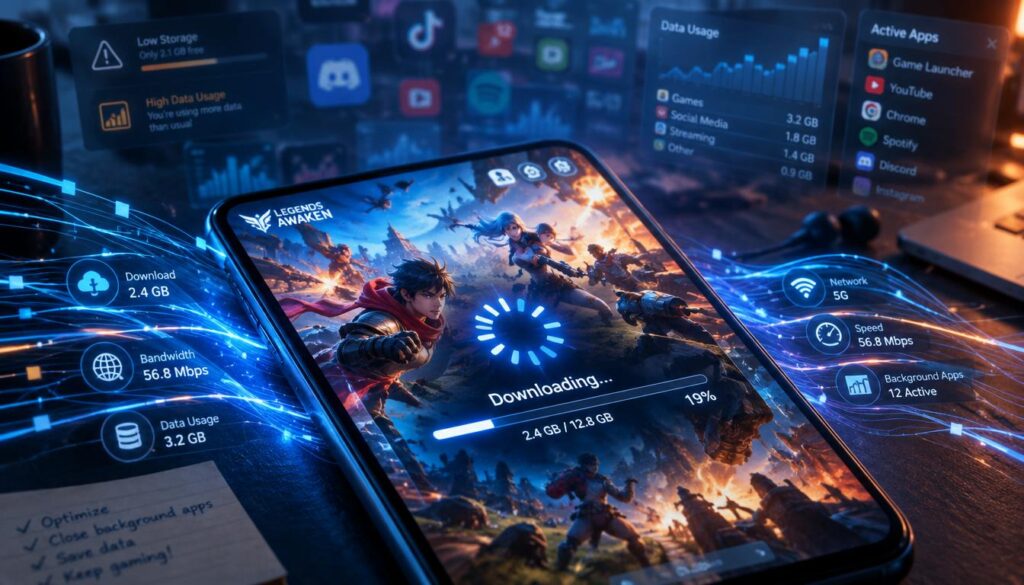
Restart and close unnecessary apps
Restart your phone, then open only the apps you need. Background apps can use memory, processing power, or network data while you play.
Some phones keep apps ready in memory to make them open faster. Closing every recent app is not a guaranteed fix, so focus on apps that are active or using resources.
Pause active downloads and syncing
Pause app updates, cloud-photo uploads, backups, and large transfers on devices sharing your connection. A background-data restriction may not stop a transfer that has already started.
Try these four checks before adjusting game settings:
- Restart the phone.
- Close unused apps that are active.
- Pause active downloads and uploads.
- Relaunch the game after downloads finish.
On Android, the official Android guide to speeding up a slow device also recommends checking storage and apps when a phone struggles. These basic steps help you see whether other work was competing with the game.
If performance remains poor, check settings that can limit or prioritize game resources more directly.
Can Battery Saver or Game Mode Affect Gameplay?
A game can feel sluggish while a power-saving setting is enabled. Test a demanding game with battery saver off if performance is poor.
Battery saver or a manufacturer’s power-saving mode may limit processing performance to extend battery life. The change can matter during a busy match, when the game asks the phone to do more work.
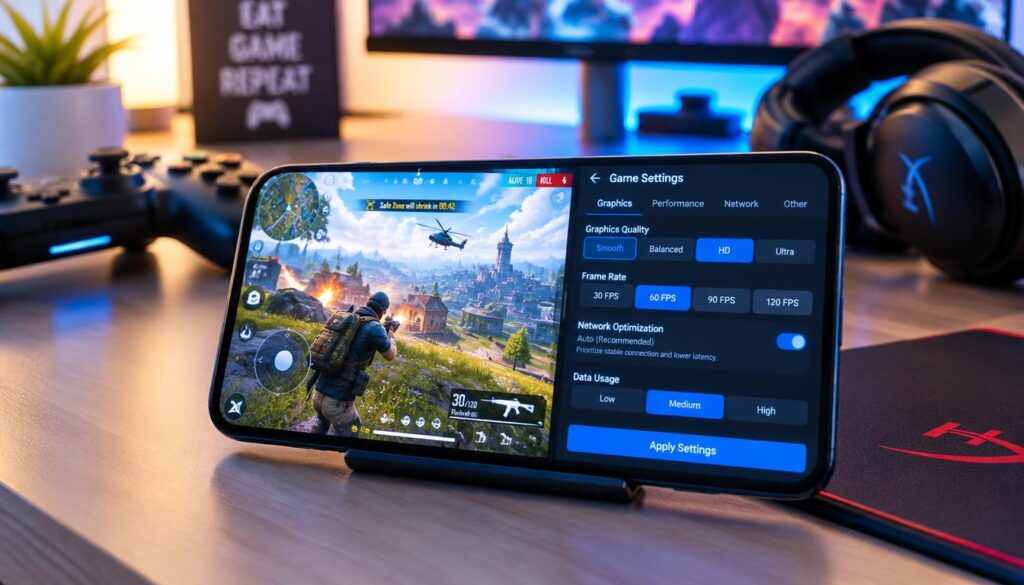
Turn off power-saving modes before a demanding session
Turn off battery saver for one test session, then compare the same type of scene. If performance improves, the mode may have been restricting the phone.
Using more power can drain the battery faster. Turn the mode back on when you are done if battery life matters more than the test.
Use your phone’s built-in gaming tools
Built-in gaming tools may manage interruptions or background activity. Examples include Samsung Game Booster, Xiaomi Game Turbo, ASUS Game Genie, and OnePlus Gaming Mode.
Available features vary by device and software version. If you are learning how to reduce lag in mobile games on Samsung, check Game Booster options while the game is running.
These tools cannot repair weak Wi-Fi or make unsupported hardware render demanding graphics smoothly. They can still reduce interruptions that pull your attention away from a match.
Set up the power and gaming options, then consider the graphics workload the game asks your phone to handle.
How to Reduce Lag in Mobile Games With Lower Graphics Settings
A stable moderate preset can feel better than rich graphics that stutter during combat. Lower graphics settings when the phone cannot keep gameplay smooth in demanding scenes.
Start with one change, then compare the same kind of scene. Keep visual details that have little effect on performance if they help you spot opponents or read the action.
| Setting | First adjustment to test | What to compare |
|---|---|---|
| Graphics quality | Try Medium or Low | Smoothness in a demanding scene |
| Shadows | Lower or disable | FPS and visual clarity |
| Anti-aliasing | Reduce or disable | Performance against edge smoothness |
| Effects or draw distance | Reduce one at a time | Stability during fights or busy scenes |
Graphics quality changes how much work the phone does to draw a scene. Shadows and anti-aliasing can add extra work without improving visibility for every player.
Effects and draw distance can matter more in a crowded fight than in an empty area. Test those options where you notice the problem, not only in the game’s quiet opening area.
Change one option at a time and keep a note of the result. A lower setting that helps one game may not help another game on the same phone.
Graphics are only half the choice. Next, choose a frame-rate target your phone can sustain.
What Frame Rate Can Your Phone Sustain?
A phone may feel smooth in a quiet area but stutter during a crowded fight. Choose a frame-rate target based on steady performance, not the highest option shown.
A game’s FPS option sets a target for how many frames it tries to show each second. A screen’s refresh rate describes how often the display can update. Those settings relate, but they are not interchangeable.
If FPS repeatedly falls below the selected option, lower the in-game target and compare the same scene. Do the same if the phone heats up during demanding play.
A high displayed frame rate does not always feel smooth. Uneven frame pacing can cause visible judder even when the FPS number looks strong.
Try one target, then replay a similar scene and watch both the display and your controls. Your phone’s processor, cooling, game, and current workload all affect the result.
No single FPS target works for every phone. A lower steady rate may feel better than a higher target that drops during fights.
Some phones can hold a selected target in one game but not another. Game updates, busy effects, and background activity can also change the load.
Once the target suits the game, consider heat as a common reason performance declines over a longer session.
How Can You Keep Your Phone From Overheating?
A match may start smoothly, then become persistently choppy later in the session. When performance drops as the phone heats while ping stays similar, heat may be the cause.
Thermal throttling is the phone reducing processor speed when it gets too hot. The change can protect the device, but it can also lower gaming performance.
Charging while gaming adds heat, and a thick case can trap it. Try these practical checks during longer play:
- Stop charging while playing.
- Remove a thick case that traps heat.
- Lower screen brightness.
- Play in a cooler indoor space.
- Take a break and let the device cool normally.
Give the phone time to cool at room temperature before testing again. Do not put a hot phone in a refrigerator or use rapid cooling methods.
A sudden temperature change can harm the device or cause moisture to form inside it. If heat returns quickly, shorten the session and check whether the game is demanding more than your phone can sustain.
Temperature is only one possible cause. Once it is controlled, check whether limited storage or damaged game files create a separate problem.
Can Low Storage or Game Files Cause Lag?
A game that suddenly stutters after running smoothly for weeks may have a file issue. Check storage and repair options before removing a game or its data.
A nearly full device has less room for temporary files and game resources. Keeping 15%-20% of internal storage free is a practical target for routine use.
Free space when your storage is nearly full
Check which apps, videos, and downloads use the most space. Remove items you no longer need, then restart the game and compare performance.
Low storage may affect more than one game, while damaged files may affect only one title. A game’s own repair tool can help check its resources without removing the whole app.
Clear cache or repair the affected game
On Android, open Settings, Apps, choose the game, tap Storage, then tap Clear Cache. Cache means temporary files created by a game.
Clear Cache is separate from Clear Data. Clear Data can remove local app information, so avoid it unless you understand what the game stores there.
On iPhone, individual app cache clearing is not generally available. Removing and reinstalling an affected game may be needed when its files are the problem.
Before reinstalling, confirm that your game account is linked and recoverable. Protecting account access can prevent a file fix from becoming a lost-progress problem.
- Check how much free space remains.
- Use the game’s supported repair option if available.
- Protect account access before reinstalling.
For more ways to fix lag on a phone, start with the game’s own support options rather than clearing data at random. Separate a one-game file problem from connection symptoms before moving to network troubleshooting.
How Can You Tell Whether Your Internet Is Causing Lag?
Your actions may register late even while the on-screen image remains smooth. Compare ping and interruptions across similar sessions instead of relying on download speed alone.
A fast download speed does not guarantee low, stable ping. Ping can rise when network traffic builds or the connection repeatedly switches.
Compare connections without changing the game
Compare Wi-Fi with mobile data while keeping the game and server unchanged where possible. Record normal ping, spikes, and interruptions across several sessions.
Check your mobile-data allowance before testing, especially if the game still needs to download resources. Large downloads can use data quickly.
Check for network traffic and unstable signals
Pause actual transfers on your phone and other devices. Check whether the phone keeps switching between networks while you play.
Use the game’s ping display when available. A stable speed test cannot show every brief delay that affects a live match.
- Pause transfers on the phone and other devices.
- Note normal ping, spikes, and interruptions.
- Compare Wi-Fi and mobile data.
- Keep the more consistent option for another comparable session.
Repeat the test in a similar game mode and at a similar time. A match on a different server can make the comparison less useful.
If your results point to Wi-Fi, compare the available bands and your distance from the router.
Should You Use 2.4 GHz or 5 GHz Wi-Fi for Gaming?
A 5 GHz connection may be fast near the router but unreliable through several walls. Test Wi-Fi from your usual playing spot instead of assuming 5 GHz always works better.
2.4 GHz usually reaches farther and passes through walls more effectively. 5 GHz often has more capacity and less congestion when its signal is strong.
| Option | Potential strength | Limitation | What to test |
|---|---|---|---|
| 2.4 GHz | Farther reach and better wall penetration | May face more congestion or interference | Stability from usual playing position |
| 5 GHz | Often more capacity and less congestion with a strong signal | Shorter range; obstacles affect it more | Performance near router and in normal room |
| Move closer to router | Stronger signal | May not be practical from every room | Compare ping and interruptions in both locations |
Try both bands from where you usually play, then compare ping and interruptions. A strong 5 GHz signal may work well, but walls and distance can weaken it.
If you can, test closer to the router before buying equipment. A better signal in that spot can show whether range or obstacles affect your connection.
Home network congestion can also cause ping spikes when other devices stream or download. Router traffic controls may help with that problem, but a new router cannot fix every issue.
See this guide to router features that can reduce gaming lag for ways to assess network traffic before buying equipment.
If changing bands or position does not help, connection setup options are a separate test from the game’s active network route.
Should You Change DNS or Use Airplane Mode?
Changing DNS does not necessarily make an active match route faster. DNS can help your device find service addresses, but it does not fix low FPS, overheating, or the game’s active route.
Google Public DNS and Cloudflare DNS offer these settings:
Change DNS only for a connection-setup problem
Google Public DNS uses 8.8.8.8 and 8.8.4.4. Its Android 9+ Private DNS hostname is dns.google.
Cloudflare DNS uses 1.1.1.1 and 1.0.0.1. Its Android 9+ Private DNS hostname is one.one.one.one.
Android Private DNS asks for a hostname, not an IP address. On iPhone, a manual DNS change applies to the selected Wi-Fi network, not cellular data.
Save the original setting before making a change. Restore it if the new DNS setting causes problems or does not help.
Keep online matches connected to the network
Airplane mode disconnects cellular service, so it is not a blanket fix for online matches. Do Not Disturb or Focus settings can reduce interruptions without disconnecting your network.
DNS may help with a problem finding service addresses, but it does not lower a weak phone’s graphics workload. Test only when connection setup seems related to the issue.
Move from network-level options to the separate settings available on Android and iPhone.
Which Android Settings Should You Check for Gaming?
An Android user may find a settings menu that looks different from a friend’s phone. Menu names vary by manufacturer and Android version, so search Settings for the feature you need.
To learn how to reduce lag in mobile games on Android, check device-specific controls alongside the game’s own settings. Search for Gaming, Game Mode, or battery-saving controls.
Find your phone’s gaming and power controls
Turn off battery saver for a test session if it may be limiting performance. Use your phone’s built-in gaming features if they help manage background apps or interruptions.
Feature names and options depend on the phone maker. Search Settings rather than following menu steps from another model.
Use Developer Options cautiously
Reducing animation scales changes interface animations, not necessarily in-game FPS. A faster-looking menu does not prove the game will run more smoothly.
Restrictive background-process settings may cause unexpected app behavior. Leave Developer Options unchanged unless you understand the trade-off and can restore the original setting.
Test one device control at a time, then compare the same game scene. Avoid changes that promise a broad performance boost without explaining their effect.
iPhone users should check their own interruption and display options rather than copying Android menu paths.
Which iPhone Settings Can Help Reduce Game Interruptions?
An incoming call can interrupt a match, and Focus can limit those disruptions. Use Focus or Do Not Disturb for interruptions, and test Low Power Mode off if the game feels restricted.
To find how to reduce lag in mobile games on iOS, test one iPhone setting at a time. That makes it easier to tell whether the change affects gameplay.
Manage Focus, Low Power Mode, and background activity
Try a session with Low Power Mode off if performance seems limited. Use Focus or Do Not Disturb to limit calls and notifications during play.
Review Background App Refresh and automatic downloads if they create activity while you play. Those settings are not the cause of every lag problem.
Balance display smoothness and sustained performance
A higher refresh-rate display can feel smoother, but it may add heat and battery use. If performance worsens during long sessions, test a balanced display and frame-rate setting.
Compare the same kind of scene after each change. A display option affects what you see, while a game’s frame-rate option affects how many frames it tries to deliver.
Keep settings that improve the session without causing new heat or battery problems. Restore a change if it brings no clear benefit.
If one title remains the problem, test that game’s own settings and supported options.
Do Different Mobile Games Need Different Settings?
A busy multiplayer fight can strain a phone differently from an open-world scene with detailed environments. Set each game based on the scenes that place the heaviest load on your device.
PUBG Mobile, Call of Duty: Mobile, and Free Fire MAX are competitive games with their own graphics and workload demands. Genshin Impact can place sustained demands on graphics and processing.
A competitive shooter may feel better with a stable, lower visual preset. On a less powerful device, an open-world game may need a lower frame-rate target or render workload.
For MLBB smoother gameplay, lower demanding effects and compare the same busy team fight. One setting will not suit every phone or game version.
A major update may cause temporary stuttering while game resources or shaders are prepared. Play several sessions and test again before assuming the device has permanently slowed.
Some games also offer a lighter version or lower-spec mode. Use the game’s own supported options rather than changing unrelated phone controls.
If several demanding games struggle even on conservative settings, assess the device’s limits and remaining storage next.
When Is the Phone Itself the Performance Limit?
One updated game slowing down is different from several demanding games struggling under the same conditions. If several games lag on low settings, your phone may be reaching its sustained performance limit.
Older or lower-powered devices may not sustain newer games at high settings. That does not mean you must buy another phone.
| Pattern | Possible explanation | Practical test | What the result suggests |
|---|---|---|---|
| Only one game has problems | Game files or requirements | Use repair and test another game | Investigate that title first |
| Several demanding games lag on low settings | Workload may exceed sustained capability | Cool the phone and compare a lighter game | Consider a device limit |
| Performance worsens as the phone heats | Thermal throttling | Cool the phone and repeat a similar session | Improve cooling before judging hardware |
Check whether the game offers a lite version or lower-spec mode. Those options may let you keep playing without asking the phone to handle its heaviest workload.
Storage can also affect performance when the phone has little free space. A single game problem points toward a different cause than several games slowing under similar conditions.
Run one final controlled troubleshooting pass before deciding whether the remaining limit is hardware.
What Should You Do If the Game Still Lags?
You may have tried several changes and still cannot tell which one helped. Change one relevant setting at a time, then repeat a comparable session.
Restore the old setting if the change brings no clear benefit. A short record of ping and FPS can help you see whether the problem moved.
Test one change at a time
Use a similar scene and game mode each time. Check these points during your next troubleshooting pass:
- Record whether ping or FPS changes.
- Test the same game scene.
- Confirm downloads are complete.
- Restart after system or game updates.
- Compare another game on the same device.
Do not change several settings between tests. If you do, you may see a difference but not know which change caused it.
Know when to repair or reinstall
Use the game’s supported repair option before reinstalling when available. Before reinstalling, confirm account recovery and protect any locally stored progress.
A factory reset is not a first-line gaming fix. It can erase personal data and needs a separate backup and device-support reason.
If one game still fails while others work, focus on that title’s files and support options. If many games struggle, compare results after the phone cools.
Choose one likely cause, test it in a comparable session, and note the result before changing anything else.
Choose the single most promising test and note its result before changing anything else.
Conclusion
The most useful fix depends on whether the symptom comes from your connection or your phone. Changes in ping, FPS, and heat tell you more than changing every option at once.
Consistent gameplay often feels better than the highest graphics quality or frame-rate setting. Keep the settings that work for your phone and the game you play.
For your next step, change one likely cause and play a comparable short session. Keep the change only if the result improves.
FAQ
How to make MLBB smoother?
Test a lower effects or graphics setting in the same busy team fight, then keep it only if frame delivery improves on your phone. Make one change at a time so you can tell what helped. A quiet menu or empty lane may not show the same strain as a team fight with several players and effects on screen.
Why is my game so laggy but my internet is fine?
A stable download speed does not rule out high ping, FPS drops, heat, background transfers, or a problem limited to one game. Check whether actions arrive late or the visuals stutter. Then compare ping and FPS during a similar session, since download speed alone does not show every delay during a live match.
Do games slow down your phone?
A game uses processing power, storage, and battery while it runs, but ordinary play does not permanently slow every phone. Heat can temporarily reduce performance through thermal throttling. If a phone slows during a long session, let it cool and compare another session before assuming the device has lasting damage.
How to stop lag on mobile games?
First distinguish choppy FPS from delayed network actions, then change one relevant setting and compare a similar session. Visual stutters point toward device performance, while late actions with steady visuals can point toward the connection. Keep a change only when the same game scene runs better afterward.
Can 5GHz Wi-Fi always reduce mobile game lag?
No. 5 GHz can offer more capacity and face less congestion when its signal is strong, but it has shorter effective range than 2.4 GHz. Walls and other obstacles affect it more. Test both bands from your usual playing spot, because the best choice depends on signal strength and local traffic.
Should you clear game data to fix lag?
Prefer Clear Cache on Android before considering Clear Data. Clear Data can remove local app information, and the game may not store all progress online. Confirm that your account is linked and recoverable before reinstalling. On iPhone, removing and reinstalling the game may be needed to replace damaged files.