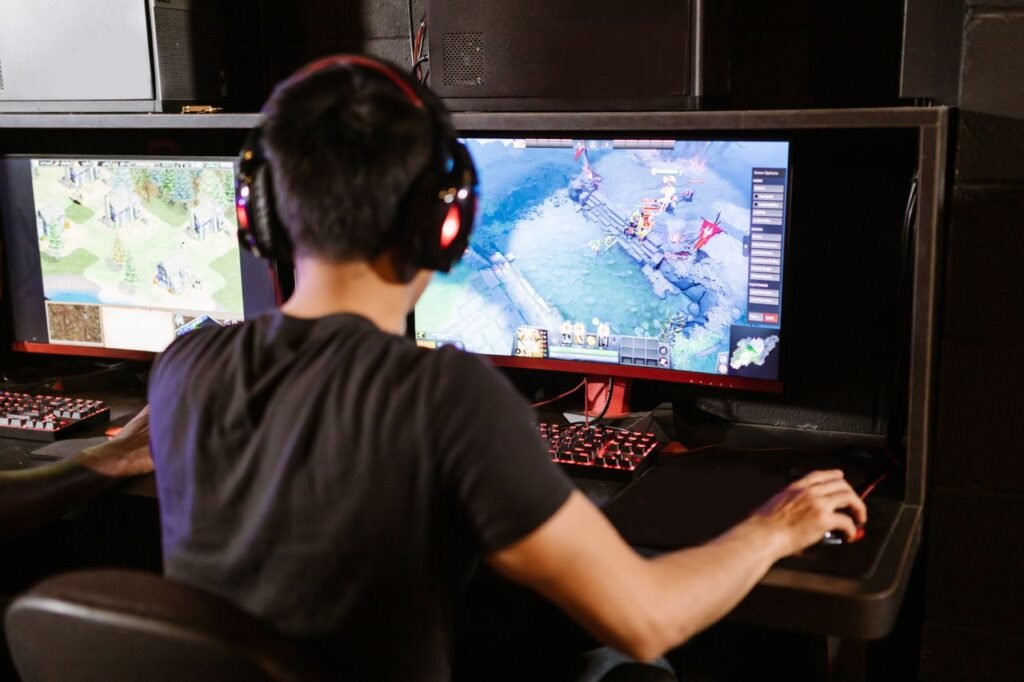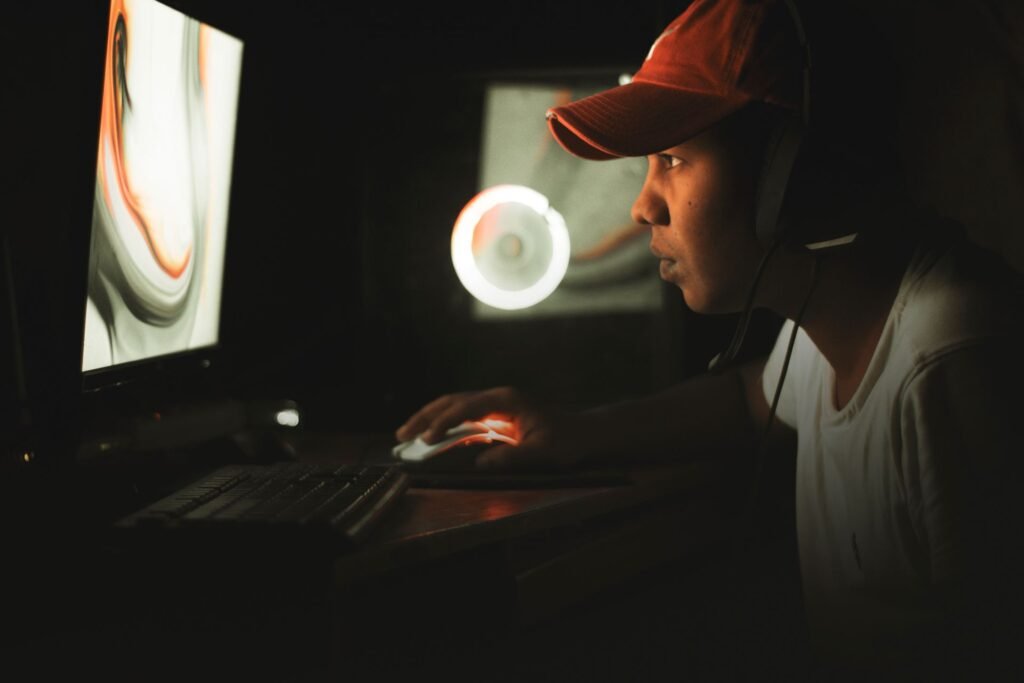
Low FPS is one of the most frustrating things in PC gaming. You’ve got a decent enough setup, the game should run fine — and yet there you are, watching your frame rate crawl through demanding scenes while everything feels like it’s running through treacle. It kills immersion. It costs you fights in competitive games. And it makes you feel like you need to spend money you don’t have on a GPU upgrade.
Here’s the thing: most FPS problems aren’t hardware problems. They’re software, settings, and configuration problems — and fixing them costs nothing. Learning how to boost FPS in PC games is one of the most valuable things any PC gamer can do, and most of the fixes take under five minutes.
This is a practical, no-filler guide to the 10 most effective ways to boost FPS in any PC game in 2026. Start at the top and work your way down — most people see a significant improvement within the first three fixes.
Fix 1 — Update Your Graphics Drivers (Biggest Free FPS Gain)
If you haven’t updated your GPU drivers recently, this is where to start. Stale drivers genuinely leave performance on the table. NVIDIA and AMD both ship driver-level optimizations for major new game releases — sometimes a single update adds 5-15% FPS in specific titles at zero cost.
For NVIDIA: Open GeForce Experience → Drivers tab → Check for Updates → Download and install
For AMD: Open AMD Adrenalin software → Home screen → Check for Updates → install “Optional” updates too, not just recommended ones
Important: Always do a clean install when updating GPU drivers, not just an update over the top. A clean install removes old driver files that can cause conflicts and stutters.
After installing new drivers, restart your PC and test your game before making any other changes. Driver updates alone have fixed persistent FPS issues for thousands of players — it’s always the first thing to check.
If you’re looking for the best free competitive games to test your boosted FPS on, check out our full guide.
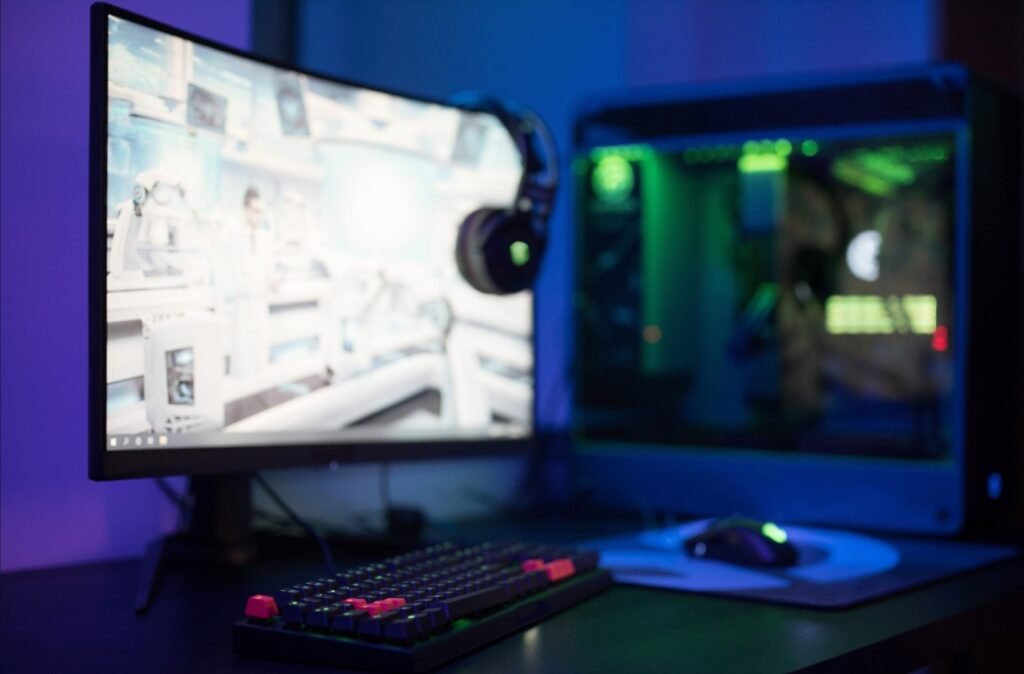
Fix 2 — Switch to High Performance Power Plan
Windows defaults to “Balanced” power plan — which sounds sensible until you realise it actively throttles your CPU and GPU to save energy. In gaming, this is exactly backwards. You want maximum performance, not maximum efficiency.
How to switch:
Press Windows key + R → type powercfg.cpl → press Enter → Select High Performance
On Windows 11 Pro, there’s also an “Ultimate Performance” option that removes additional power saving limits. Search for it in Windows Settings → System → Power.
On laptops this matters even more. Battery-saving modes can cut GPU clock speeds by 30-40% even when plugged in. Always switch to High Performance when gaming, even on AC power.
Expected FPS gain: 5-20 FPS in CPU-heavy games like open-world titles and strategy games. Less impact in GPU-limited scenarios, but costs nothing to enable.
Fix 3 — Enable DLSS or FSR (Biggest Visual-to-Performance Ratio)
This is the highest-impact free FPS boost available in 2026, and it works in hundreds of modern games.
NVIDIA DLSS (RTX 2000 series and newer): DLSS renders your game at a lower resolution and uses AI upscaling to produce near-native image quality. DLSS Quality mode typically adds 40-70% more FPS with minimal visual difference. DLSS Frame Generation on RTX 4000 series can effectively double your framerate.
AMD FSR 3.1 (any GPU — including NVIDIA and Intel): FSR works on any graphics card — you don’t need an AMD GPU to use it. FSR Quality mode adds 30-50% FPS with minimal visual cost in supported games.
How to enable: In your game’s Graphics or Display settings, look for DLSS, FSR, or XeSS options. Select “Quality” mode for the best balance of performance and visual quality, or “Balanced” for more FPS with slightly softer image.
In a game like Cyberpunk 2077, switching from native 1440p to DLSS Quality on an RTX 4070 pushes framerates from around 65 FPS to over 100 FPS. That’s a completely free upgrade that takes thirty seconds to enable.
Fix 4 — Close Background Applications
Every application running in the background competes with your game for CPU and RAM. Web browsers are particularly bad for this — Chrome and Edge can consume 500MB-2GB of RAM and significant CPU cycles even when minimised.
Before launching any game:
- Close your browser completely (not just minimise)
- Close Discord or switch it to low-resource mode
- Close streaming software if you’re not actively streaming
- Close any cloud sync services like OneDrive or Google Drive
Quick method: Press Ctrl + Shift + Esc to open Task Manager → Processes tab → Sort by CPU or Memory → Right-click anything not essential → End Task
Don’t close antivirus software — that can create other problems. Everything else is fair game.
Expected improvement: Highly variable. On systems with 16GB RAM, closing a loaded browser can free 1-2GB immediately and reduce stuttering noticeably in RAM-hungry games.
Fix 5 — Enable Windows Game Mode
Windows Game Mode tells your operating system to treat your game as the priority task — allocating more CPU threads to it and preventing Windows from running background maintenance tasks during gameplay.
How to enable: Windows Settings → Gaming → Game Mode → Toggle On
Game Mode works best on mid-range systems where background Windows processes meaningfully compete with your game. On high-end systems the difference is smaller, but it costs nothing to enable and has no downsides.
One important note: after every major Windows update, check that Game Mode hasn’t been reset to Off. Windows has a habit of reverting certain gaming settings during updates.
Fix 6 — Adjust In-Game Graphics Settings (Smart Drops)
Not all graphics settings cost the same amount of FPS. Some settings look visually impressive but have minimal gameplay impact — and dropping them specifically can double your frame rate without making the game look noticeably worse.
Drop these first — they cost the most FPS:
- Shadows — Highest FPS cost of any single setting. Drop from Ultra to Medium or Low.
- Ray Tracing — Extremely expensive. Disable if FPS is your priority.
- Anti-Aliasing — Use DLSS/FSR instead, which handles this more efficiently.
- Ambient Occlusion — Subtle visual effect, significant performance cost. Low or Off.
- Motion Blur — Costs FPS and most competitive players disable it anyway.
- Depth of Field — Cinematic effect with real performance cost. Off for competitive play.
Keep these high — they cost almost nothing:
- Texture Quality — Has minimal FPS impact, makes a big visual difference
- Anisotropic Filtering — Nearly free performance-wise, dramatically improves texture clarity
The general principle: drop effects that the GPU has to calculate in real-time (shadows, lighting, reflections) before you touch texture quality. Real-time calculations scale with resolution and complexity. Texture quality is just data storage.
Fix 7 — Enable XMP/EXPO for Your RAM
Most DDR4 and DDR5 RAM kits ship running at base JEDEC speeds regardless of what’s printed on the box. A 3600MHz DDR4 kit often runs at 2133MHz out of the box because XMP isn’t enabled by default.
Enabling XMP (Intel) or EXPO (AMD) takes about 30 seconds in BIOS and can add 5-15 FPS in CPU-bound games.
How to enable: Restart your PC → Press Delete or F2 during boot to enter BIOS → Find “XMP” or “EXPO” setting → Enable it → Save and Exit
If you’re also running a single RAM stick, adding a matched second stick and enabling dual-channel mode is effectively a free 10-20% CPU gaming performance upgrade. This matters especially if you have an AMD APU or Intel integrated graphics.
Fix 8 — Monitor and Fix Thermal Throttling
A CPU or GPU hitting high temperatures will automatically reduce its clock speed to protect itself — this is called thermal throttling. The result is sudden FPS drops mid-game that seem to come from nowhere, particularly after 10-15 minutes of gameplay when components have fully heated up.
How to check: Download HWiNFO64 (free) → Run it alongside your game → Watch CPU and GPU temperatures
Warning signs:
- CPU consistently above 90°C → Thermal paste replacement or cooler upgrade needed
- GPU above 85°C consistently → Case airflow issue or thermal pad replacement
Quick fixes that don’t cost money:
- Clean dust from your CPU cooler and GPU fans with compressed air
- Make sure your case has adequate airflow — cables shouldn’t be blocking fans
- Reapply thermal paste on an older system (3+ years) — it dries out and loses effectiveness
Thermal throttling is a sneaky FPS killer because it’s inconsistent — games run fine for a few minutes, then drop frames as components heat up. If your FPS was better when your PC was new, thermals are the most likely culprit.
Fix 9 — Move Games to an NVMe SSD
Installing games on an HDD versus an NVMe SSD doesn’t directly increase your average FPS, but it eliminates a specific and incredibly annoying type of performance problem: stutter caused by asset streaming and shader compilation.
In open-world games like GTA 5, Cyberpunk 2077, and most modern AAA titles, the game constantly loads new assets as you move through the world. On an HDD, this loading can’t keep up with movement speed, causing stutters and texture pop-in even when your average FPS looks fine.
On an NVMe SSD, the same asset streaming happens fast enough that stutters disappear entirely. The game’s average FPS might be identical, but the smoothness difference is dramatic.
If you have an SSD but games are still on your HDD, move them. If you don’t have an SSD at all, it’s one of the highest-value upgrades available — affordable 1TB NVMe SSDs are available for $40-60 in 2026.
Fix 10 — Verify Game Files and Reinstall Problematic Games
This one gets overlooked constantly. Corrupted or missing game files cause all kinds of performance problems — stutters, FPS drops, crashes — that look like hardware or driver issues but are actually just broken files.
Steam: Right-click the game in your library → Properties → Local Files → Verify Integrity of Game Files
Epic Games Store: Library → three dots on the game → Manage → Verify
Battle.net: Click the game → Options → Scan and Repair
This process checks every game file against the correct version and replaces anything corrupted or missing. It takes 5-10 minutes and has fixed persistent performance issues for countless players who had spent hours chasing the wrong solution.
What If Nothing Helps?
If you’ve gone through all 10 fixes and FPS is still unacceptably low, you’re likely hitting a genuine hardware limitation. The honest answer at that point is that you need a hardware upgrade — either more RAM (if you have less than 16GB), a faster GPU, or in some cases a faster CPU.
Before spending money, use a free tool to check where your bottleneck actually is. HWiNFO64 shows you real-time CPU and GPU utilisation during gameplay — whichever one is consistently hitting 95-100% while the other sits lower is your bottleneck and the component to upgrade first.
FPS Boost Summary — Quick Reference
| Fix | Expected Gain | Cost | Time |
|---|---|---|---|
| Update GPU drivers | 5-15% | Free | 10 min |
| High Performance power plan | 5-20 FPS | Free | 2 min |
| Enable DLSS/FSR | 30-70% | Free | 2 min |
| Close background apps | Variable | Free | 2 min |
| Enable Game Mode | Small-medium | Free | 1 min |
| Adjust graphics settings | 20-50% | Free | 10 min |
| Enable XMP/EXPO | 5-15 FPS | Free | 5 min |
| Fix thermal throttling | Variable | Free-$10 | 30 min |
| Move to NVMe SSD | Stutter fix | $40-60 | 30 min |
| Verify game files | Variable | Free | 10 min |
Final Thoughts
Learning how to boost FPS in PC games is genuinely one of the most valuable skills for any PC gamer. The fixes above — in order — cover the vast majority of FPS problems without spending a single penny. Driver updates, power settings, DLSS/FSR, background apps, and in-game settings adjustments alone solve most cases.
The key is to make one change at a time and test between each fix. That way you know what actually helped rather than making five changes at once and having no idea which one made the difference. And Once you’ve picked your game, make sure your PC is running it as well as it should be.
Not sure if your hardware is worth upgrading or if cloud gaming makes more sense for your situation? Our honest review breaks it down.
If your monitor is still at 60Hz, no FPS fix will make games feel truly smooth — our monitor guide covers the best upgrades under $300 right now.
Good luck — and may your frame times be consistent. If you’re building a new PC and want to make sure it runs games well from day one, start with our complete budget PC build guide.
If your keyboard is holding you back — particularly in competitive FPS — our guide to choosing the right gaming keyboard in 2026 covers exactly what to look for.
Which of these fixes made the biggest difference for you? Let us know in the comments — it helps other readers know where to start.