
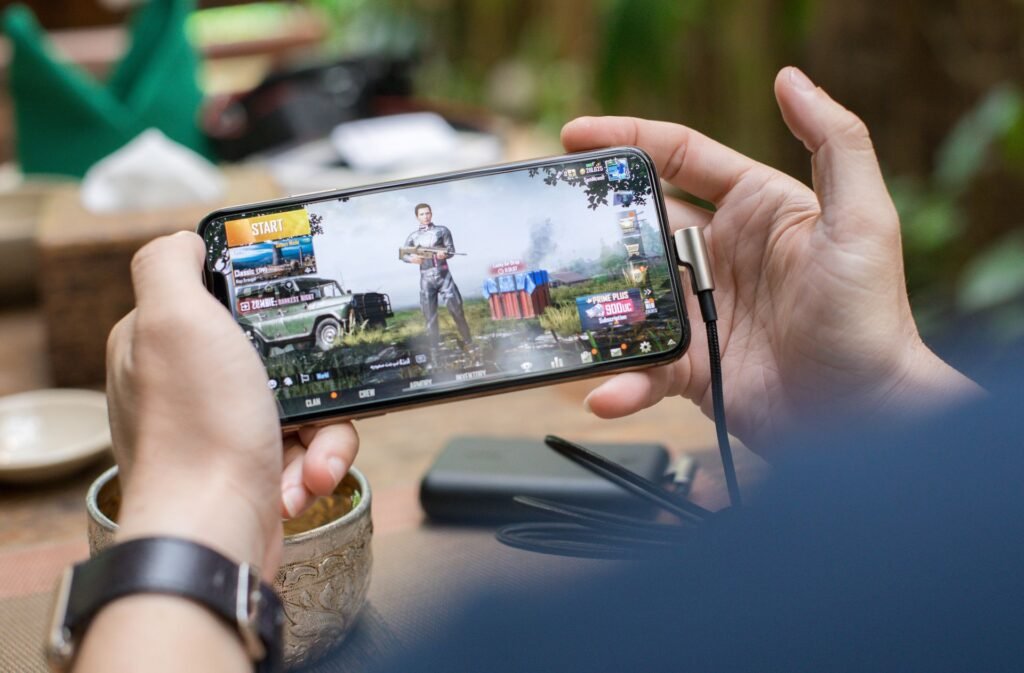
You’re mid-match in PUBG Mobile. Final circle. You’ve played this perfectly for twenty minutes. And then your phone decides to have a moment — frames drop, your character rubber-bands across the screen, and by the time things recover you’re dead and staring at the spectate screen.
Mobile game lag is one of the most infuriating experiences in gaming because it feels random. Sometimes the game runs perfectly. Sometimes it runs like a PowerPoint presentation. And most guides online either tell you to buy a new phone or suggest fixes that haven’t been relevant since Android 9.
This guide is different. These are 12 fixes that actually work in 2026 — tested across Android and iOS, on budget devices and flagships. Most of them are free and take under five minutes. Start at the top and work down. Ninety percent of lag problems get solved in the first five fixes.
First — Understand What Kind of Lag You’re Dealing With
Before fixing anything, it’s worth knowing what you’re actually fighting. Mobile game lag comes in two distinct forms and the fixes are completely different depending on which one you have.
FPS Lag (Frame Rate Drops) — The game looks choppy, animations stutter, everything feels slow and unresponsive. This is a hardware or settings problem. Your phone’s processor or GPU is struggling to render the game fast enough.
Network Lag (High Ping) — Your character rubber-bands, actions register late, enemies teleport around. This is a connection problem. The data between your phone and the game server is taking too long to travel.
Quick test: Play an offline game or practice mode. If it runs smoothly there but lags in multiplayer, it’s network lag. If it lags everywhere, it’s FPS or thermal lag.
Knowing which type you’re dealing with saves you from applying network fixes to a hardware problem and vice versa.
Fix 1 — Close Every Background App (Do This First, Always)
This sounds obvious. Most people think they’ve already done it. Most people haven’t done it properly.
Every app running in the background — social media, streaming, browser tabs, music players — is competing with your game for RAM and CPU. Even apps you haven’t touched in hours are quietly consuming resources.
On Android: Tap the recent apps button → tap “Close All” or swipe away every app individually. Don’t just minimize — actually close them.
On iPhone: Swipe up from the bottom edge, pause briefly, then swipe up on every app card to close it.
Do this immediately before launching any game. The RAM freed by closing a loaded browser and a few social media apps can translate to noticeably fewer frame drops in demanding games like Genshin Impact and PUBG Mobile.
Fix 2 — Turn Off Battery Saver Mode (Non-Negotiable)
Battery saver is the hidden performance killer that causes more mobile game lag than any other single setting. Its entire job is to throttle your processor to save power. That’s the opposite of what you want during gaming.
On Android: Pull down the notification shade → turn off Battery Saver if it’s enabled. Also check that any manufacturer-specific power saving mode is disabled (Samsung’s “Power Saving Mode,” Xiaomi’s “Battery Saver” in MIUI, etc.)
On iPhone: Settings → Battery → Low Power Mode → Off.
The performance difference when battery saver is active versus inactive can be 15-30% in CPU-intensive games. If you’ve been gaming with this enabled and wondering why your phone lags, this is probably the main reason.
Fix 3 — Enable Gaming Mode (Built Into Your Phone)
Every major Android brand ships a dedicated gaming tool in 2026 that automatically optimizes your phone for gaming sessions. Most people have never turned it on.
Samsung Galaxy devices: While running any game, swipe from the bottom edge and tap the floating icon to access Game Booster. Enable Priority Mode to block calls and notifications, monitor temperature and memory, and set High Performance Mode.
Xiaomi and Redmi: Settings → Additional Settings → Game Turbo. Enable it and add your games to the list.
OnePlus: Game Space → add your games → enable “Fnatic Mode” for maximum performance.
ASUS ROG / Gaming phones: Armoury Crate app handles this automatically.
iPhone: There’s no dedicated game mode, but enabling Do Not Disturb before gaming achieves a similar effect — no notifications interrupting rendering, no calls pausing frames mid-match.
These built-in tools block interruptions, prioritize your game’s resource allocation, and reduce background process interference. A network engineer testing common 2026 phones found consistent ping drops and a 25% reduction in stutter after enabling Game Mode and switching to 5GHz WiFi during 30-minute competitive sessions.
Fix 4 — Switch to 5GHz WiFi (For Network Lag)
If your lag is network-based — rubber-banding, delayed actions, high ping — this is the single most impactful fix available.
The standard 2.4GHz WiFi band is slower and more congested because it’s shared with microwaves, baby monitors, neighbouring routers, and everything else on the same frequency. The 5GHz band is faster, less congested, and provides lower latency for gaming.
Check your router’s settings. If you have a dual-band router (most modern routers do), you’ll see two network names — often the same name with “5G” at the end. Connect to that one.
Moving closer to your router also matters more than most guides admit. Testing from a room far from the router versus directly beside it can show ping differences of 30-60ms in real gameplay — enough to be the difference between responsive and laggy multiplayer.
DNS servers also help. In your WiFi settings, change the DNS to either Cloudflare (1.1.1.1) or Google (8.8.8.8). This can reduce DNS lookup times and shave milliseconds off your connection to game servers.
Fix 5 — Lower In-Game Graphics Settings
This is the most direct fix for FPS lag and the one most people resist because they don’t want to play on lower visual settings. Here’s the honest case for doing it anyway:
A stable 60 FPS on medium settings is a dramatically better gaming experience than 90 FPS that regularly drops to 30 during combat. FPS consistency matters more than maximum FPS. Frame drops are what make games feel laggy — a locked 60 is smoother than an inconsistent 90.
What to turn down first (highest performance cost):
- Shadows — turn to Low or Off
- Anti-Aliasing — turn Off
- Effects quality — Low
- Draw distance — Medium
What to keep higher (minimal performance cost):
- Texture quality — Medium or High
- Character detail — Medium
Frame rate cap: Set a stable cap that your phone can maintain. If your phone struggles at 60 FPS, cap at 45. A locked 45 FPS feels better than 60 with constant drops.
Fix 6 — Clear Game Cache (5 Minutes, Often Works)
Cached data accumulates over time and corrupted cache causes stutters and frame spikes that appear randomly and feel impossible to diagnose. Clearing it is fast and has no downside — the game just rebuilds a fresh cache on next launch.
Android: Settings → Apps → [Game Name] → Storage → Clear Cache. Do not tap “Clear Data” — that deletes your save progress. Cache only.
iPhone: You can’t clear individual app caches on iOS without deleting the app. If cache is the suspected issue, delete and reinstall the game. Your progress is usually tied to your account and recovers on login.
Clear cache for any game that’s suddenly started lagging after playing smoothly for weeks — a corrupted cache update is a common cause of this specific pattern.
Fix 7 — Keep Storage Above 20% Free
When your phone’s storage is nearly full, the operating system has no room to write temporary files, manage virtual memory, or cache game data properly. The result is lag that feels like a hardware problem but is actually a storage problem.
Keep at least 20% of your internal storage free at all times. Move photos and videos to cloud storage (Google Photos or iCloud offer free tiers), delete apps you don’t use, and offload large files.
On Android, Files by Google gives you a quick view of what’s taking space and one-tap options to clear junk files. On iPhone, Settings → General → iPhone Storage shows a breakdown of what’s consuming space and offers automatic offloading options.
Fix 8 — Fix Thermal Throttling (The Most Underrated Lag Cause)
Thermal throttling is the most common cause of lag that starts fine and gets worse the longer you play. Your phone runs hot during gaming. When the processor reaches a temperature threshold, it automatically reduces its clock speed to protect the hardware. The result is sudden, severe FPS drops after 15-30 minutes of play that don’t go away until the phone cools down.
Signs you’re thermal throttling: the game runs fine for the first 20 minutes, then suddenly and persistently lags for the rest of the session. Touching the back of your phone reveals it’s uncomfortably hot.
Free fixes:
- Remove your phone case while gaming — cases trap heat
- Don’t charge while gaming — charging generates significant additional heat
- Lower screen brightness — the display is a major heat source
- Play in a cooler environment — gaming in a warm room accelerates throttling
- Set graphics to medium — less GPU load means less heat
Paid fix: Clip-on cooling fans from brands like Black Shark, GameSir, and Razer have come down significantly in price — a basic magnetic USB-C cooler costs $15-35 in mid-2026. The effect on sustained gaming performance is documented and real. If you play competitively for more than 30 minutes at a time and regularly experience this pattern of lag, an external cooler is a higher-impact purchase than any gaming booster app.
Fix 9 — Update Everything (OS, Game, Drivers)
Outdated software causes compatibility lag that manifests as frame timing issues, crashes, and stutters specific to newer game content running on older software versions.
Android 16 and iOS 19 in 2026 both include meaningful gaming performance improvements — memory management optimizations, GPU scheduling improvements, and frame pacing fixes that directly affect gaming smoothness. Staying on older OS versions means missing these.
Update in this order:
- System OS update
- GPU drivers (Android — where available via manufacturer)
- Game update
After any large game update, the first few sessions are often slower than normal while the game compiles shaders in the background. This is normal and resolves itself within 2-3 sessions.
Fix 10 — Use Android Developer Options (Advanced)
Developer Options is a hidden menu on Android that unlocks system-level settings most users never touch. For gaming, a few specific settings make a genuine difference.
How to enable: Settings → About Phone → tap “Build Number” seven times → Developer Options appears in the main Settings menu.
Settings to change for gaming:
- Window Animation Scale → 0.5x (snappier transitions, faster perceived response)
- Transition Animation Scale → 0.5x
- Animator Duration Scale → 0.5x
- Background Process Limit → 3 (limits background apps from consuming resources)
One setting to leave alone: Force 4x MSAA. Older guides recommend this, but on 2026 mid-range hardware it causes overheating, faster battery drain, and actual FPS drops. Skip it.
Fix 11 — Try Airplane Mode + WiFi (For Competitive Games)
This sounds counterintuitive, but enabling Airplane Mode and then manually turning WiFi back on stops cellular radio background activity — scanning for cell towers, background data syncing, carrier notifications — without affecting your WiFi gaming connection.
The result is reduced background network noise and more stable WiFi performance during gaming. It’s a simple toggle that takes ten seconds and provides a measurable latency improvement in games that are sensitive to connection stability.
Fix 12 — Reinstall the Game (Last Resort, Often Works)
When nothing else fixes persistent lag, a fresh install clears corrupted files, resets misconfigured settings, and eliminates accumulated cache issues that Clear Cache doesn’t always catch.
Before reinstalling, make sure your game progress is tied to an account (most competitive games — PUBG Mobile, COD Mobile, Genshin Impact — save to an account you log back into after reinstall). Don’t reinstall a game where progress is saved locally without backing it up first.
Uninstall completely → restart your phone → reinstall fresh from the store → log back in → test performance.
Quick Checklist — Mobile Lag Fix Order
| Step | Fix | Time |
|---|---|---|
| 1 | Close all background apps | 1 min |
| 2 | Turn off Battery Saver | 30 sec |
| 3 | Enable Gaming Mode | 2 min |
| 4 | Switch to 5GHz WiFi | 2 min |
| 5 | Lower in-game graphics | 3 min |
| 6 | Clear game cache | 2 min |
| 7 | Free up storage to 20%+ | 10 min |
| 8 | Fix thermal throttling | Ongoing |
| 9 | Update OS and game | 5-15 min |
| 10 | Adjust Developer Options | 5 min |
| 11 | Airplane Mode + WiFi | 30 sec |
| 12 | Reinstall game | 10-20 min |
What If Nothing Works?
If you’ve gone through all twelve fixes and lag persists, you’re likely hitting a genuine hardware limitation. The honest answer at that point is that the game has outgrown your device.
Signs it’s actually a hardware problem: the phone is more than three years old, it lags on Low graphics settings with everything else optimized, and it overheats within minutes even with no case and brightness at minimum.
Before buying a new phone, check if the game has a “lite” or lower-spec version (PUBG Mobile Lite, Free Fire MAX’s lower-spec mode). These are specifically optimized for older hardware and often provide a dramatically better experience on budget devices than the standard version.
If you are ready to upgrade, our guide covers the best gaming phones under $400 available right now in 2026.
Final Thoughts
Most mobile game lag problems are software, settings, and heat — not hardware. The twelve fixes above handle the vast majority of cases without spending a penny. Close your background apps, kill battery saver, enable gaming mode, switch to 5GHz, lower graphics, and let your phone breathe. That combination solves the lag for most players before they reach fix number seven.
The goal isn’t perfect performance — it’s consistent performance. A phone that holds 60 FPS reliably is more enjoyable than one that hits 90 FPS briefly and then drops to 20 during the moment that matters.
Once lag is sorted, the next question is whether the games you are playing are worth your time — our free vs paid guide covers exactly that.
Which of these fixes made the biggest difference for you? Drop it in the comments — it helps other readers know where to start.
Pingback: Best Gaming Router in 2026 — What Actually Reduces Lag (And What Doesn't)
Pingback: How to Reduce Lag in Mobile Games With Simple Tips - GAME INSIDER PRO