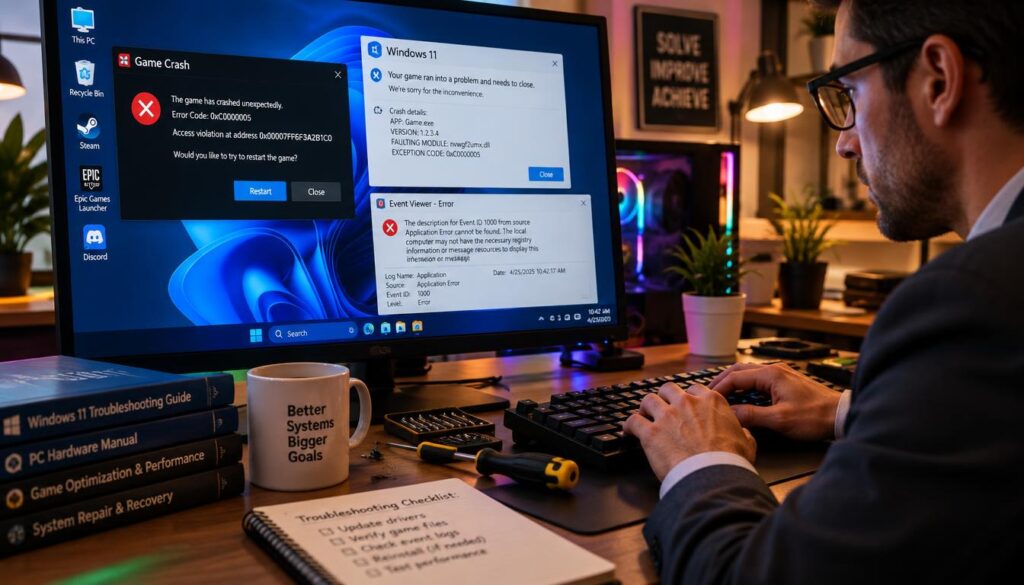
Picture this: you’re seconds from victory, heart pounding with adrenaline. Then the screen freezes, a harsh error appears, and your session disappears. Problems with games crashing on pc windows 11 can ruin any hard-earned win.
Whether you’re in a competitive match or nearing a story’s dramatic finale, a freeze feels personal. Your favorite title may stutter, lock up, or return you to the desktop, and that frustration never gets easier.
The good news is that games crashing on PC Windows 11 can often be fixed. We tested driver issues, hardware quirks, and background settings that quietly hurt performance. This guide shares proven solutions, from updating graphics drivers to checking your system files for corruption or damage.
Follow this guide to get your setup running smoothly again. Then you can enjoy your downtime without interruptions.
Key Takeaways
- Outdated graphics drivers are one of the most common reasons titles freeze or quit unexpectedly.
- Background apps and antivirus scans can quietly drain the resources your system needs most.
- Overclocked hardware often causes instability, so reverting to default settings can help a lot.
- Verifying game files through your launcher can catch corrupted data causing random crashes.
- Overheating and insufficient RAM are frequent hardware culprits worth double-checking.
- Simple restarts after applying updates or fixes often resolve lingering performance issues.
Why Games Crashing on PC Windows 11 Happens So Often
Most windows 11 game crashes come from two sources: weak hardware or software problems running in the background. Your hardware may struggle, or another program may disrupt the game. Finding the right cause saves hours of guesswork.
Overheating is a major hardware problem. A CPU or GPU that gets too hot may slow down or shut off to protect itself. An underpowered graphics card or limited RAM can also fail under heavy loads.
Software conflicts can cause equal damage and lead to more windows 11 game crashes. Outdated graphics drivers, aggressive overclocking, and demanding background apps compete for system resources. When too many processes compete, crashes on your Windows 11 PC become almost inevitable.
Here is how these two categories usually appear during real gameplay sessions:
| Cause Type | Common Culprit | Typical Symptom | Quick Diagnostic Clue |
|---|---|---|---|
| Hardware | Overheating CPU or GPU | Sudden shutdown or freeze mid-match | Spiking temps in monitoring software right before the crash |
| Hardware | Underpowered GPU or low RAM | Stuttering, then a crash to desktop | Maxed-out memory usage or low FPS warnings |
| Software | Outdated or corrupt drivers | Black screen or driver-reset error | Event Viewer logs a “display driver stopped responding” message |
| Software | Background overlays or overclocking tools | Random crash during loading screens or cutscenes | Crash log references an overlay DLL or overclock utility |
A recent problem affected many PC gamers. Microsoft confirmed that RGB peripheral drivers caused it. A specific file called inpoutx64.sys triggered crashes in ARC Raiders, MARVEL Tōkon: Fighting Souls, and The Finals.
The problem affected systems running Windows 11 24H2 and 25H2 builds. This shows that your rig is not always at fault. Before trying fixes, check Windows Event Viewer to find your issue.
Many windows 11 game crashes leave a trail there, showing which driver or system module failed. For Unity-based games, Player.log often records the precise error that caused the shutdown. This gives you a strong starting point before trying the fixes ahead.
Update Your Graphics Drivers to Stop Crashes
An unstable graphics driver causes many game crashes on Windows 11. When a driver falls behind or becomes corrupted during an update, it may not communicate with games correctly. That mismatch can make pc games freezing windows 11 freeze during a match.
Fortunately, fixing this problem rarely requires technical skills. We explain updates for NVIDIA, AMD, and Intel graphics cards, plus backup options if the first update fails.
How to Update NVIDIA Drivers
NVIDIA makes driver updates simple through its GeForce Experience app. Open the app, choose the Drivers tab, and select Check for Updates.
- Download and install the latest Game Ready driver.
- Restart your PC once installation finishes.
- Launch the game that was crashing to confirm the fix worked.
To skip the app, visit NVIDIA’s official driver page and select your exact GPU model. Download the installer directly if GeForce Experience has problems.
How to Update AMD Drivers
AMD users can update through AMD Software: Adrenalin Edition. Open the app, then click the notification bell to check for new driver releases.
Choose Update and let the software handle the download. For a manual update, visit AMD’s driver support page, enter your card model, and download the package.
How to Update Intel Graphics Drivers
Intel integrated graphics often get overlooked, but they also need regular updates. Intel Driver & Support Assistant scans your system and flags outdated drivers automatically.
You can also use Windows Update to find optional driver updates in Settings. Both methods download fresh drivers directly from Intel’s servers.
Not sure which tool fits your setup? Here’s a quick comparison of each manufacturer’s update options.
| Manufacturer | Automatic Tool | Manual Download Source | Recommended Check Frequency |
|---|---|---|---|
| NVIDIA | GeForce Experience | nvidia.com/drivers | Monthly, or before major game releases |
| AMD | AMD Software: Adrenalin Edition | amd.com/support | Monthly |
| Intel | Intel Driver & Support Assistant | intel.com support site | Every one to two months |
If finding the right driver feels tedious, Driver Easy can scan your system and install matching drivers. It offers a useful shortcut for anyone who wants to avoid manufacturer websites.
If pc games freezing windows 11 problems continue, a standard update may not be enough. Reports of frequent crashes linked to faulty GPU often point to leftover files from a failed update. Run Display Driver Uninstaller (DDU) in Safe Mode to remove old files before installing a clean driver.
If the newest driver causes problems, try rolling back one or two versions. Older, more stable releases may work better until the manufacturer fixes the bugs.
Install the Latest Windows 11 Updates
Running an outdated Windows 11 build is a common reason games crash without warning. Microsoft regularly sends bug fixes, compatibility patches, and security updates. Skipping them can leave known stability problems unresolved.
If you’re trying to fix game crashes in Windows 11, checking updates takes minutes and may save hours of frustration. Many crashes have ended after one pending update, even when other fixes failed.
Checking for Windows 11 System Updates
Open the Settings app and click Windows Update. Then select Check for updates and let Windows scan your machine.
- Open Settings and navigate to Windows Update.
- Click Check for updates and wait for the scan to finish.
- Install any updates that appear, including cumulative and feature updates.
- Restart your PC once installation completes.
- Relaunch your game to confirm the crash is gone.
This process matters for anyone facing the inpoutx64 driver conflict mentioned earlier. Microsoft confirmed a permanent fix that disables the problematic driver. The fix is gradually rolling out through Windows Update.
Full deployment should arrive in the September 2026 security update. Future releases will also include it. Keeping your system current lets you receive the fix automatically.
On an enterprise or IT-controlled machine, automatic updates may lag. As a temporary workaround, open Registry Editor and go to HKEY_LOCAL_MACHINE\SYSTEM\CurrentControlSet\Services\inpoutx64. Set the Start value to 4 to disable the driver until the official patch arrives.
Before changing the registry, back it up or create a system restore point. This precaution can protect your system if something goes wrong.
Updating Optional Driver Packages
Standard Windows updates may not include every driver your hardware needs for smooth performance. The Optional updates section can help.
Inside Windows Update, click Advanced options, then select Optional updates. You may find drivers for your motherboard, chipset, network adapter, or other peripherals.
These packages are not required, but they often fix compatibility problems standard updates miss. Check this section every month or two, especially after installing a new game or seeing new crashes.
Full system updates and optional driver packages give Windows 11 a stronger base for gaming. This simple habit helps before you change in-game graphics settings.
Verify and Repair Your Game Files
A single corrupted file buried in a game folder can cause repeated crashes. This is one of the most overlooked windows 11 gaming issues, but it is also simple to fix. Failed updates, power outages, or small disk errors can leave game files incomplete or mismatched.
You do not need to delete and redownload a 100GB game. Most major launchers compare local files with original server copies, then download fresh copies for corrupted, missing, or outdated files. This is faster than a full reinstall and can clear crashes that driver updates cannot fix.
If crashes continue, Microsoft’s own support community has troubleshooting threads with step-by-step help for similar problems.
Verifying Game Files on Steam
Steam makes this process quick, and most scans finish in just a few minutes.
- Open your Steam library and right-click the game that keeps crashing.
- Select Properties from the dropdown menu.
- Click the Installed Files tab on the left side of the window.
- Choose Verify integrity of game files.
- Wait while Steam scans your data and replaces anything damaged.
After the scan, Steam tells you how many files it restored. Launch the game again and check whether the crashes have stopped.
Repairing Games on Epic Games Launcher
Epic Games uses a similar system, though its menu looks different from Steam’s.
- Open the Epic Games Launcher and head to your Library tab.
- Find the installed game and click the three-dot menu next to it.
- Select Verify from the list of options.
- Allow the launcher to compare your local files against the server version.
Epic automatically patches incomplete files, so you do not need to find the broken files yourself.
Fixing Game Files Through the Xbox App
If you downloaded your game through the Xbox App, the repair process works just as smoothly.
- Open the Xbox App and navigate to your library.
- Click the three-dot menu on the installed game’s thumbnail.
- Select Manage from the menu.
- Choose the Files tab, then click Verify and repair.
This scans the title’s local files and restores anything that does not match Microsoft’s servers.
| Launcher | Where to Find the Tool | Button to Click | Average Scan Time |
|---|---|---|---|
| Steam | Properties > Installed Files | Verify integrity of game files | 1-3 minutes |
| Epic Games Launcher | Library > three-dot menu | Verify | 2-5 minutes |
| Xbox App | Library > Manage > Files | Verify and repair | 3-6 minutes |
Run one of these built-in repair tools before drastic steps, such as uninstalling and redownloading a massive game. It takes less time, uses less bandwidth, and often resolves windows 11 gaming issues caused by a few damaged files.
Close Background Apps and Disable Overlays
Sometimes, games not running windows 11 smoothly result from background apps, not weak hardware.
Chrome tabs, streaming tools, cloud backups, and chat apps compete for your game’s CPU, memory, and GPU resources. More open programs can cause slow responses, stutters, freezes, or crashes during play.
Many cases of games not running windows 11 properly have nothing to do with old drivers or missing files. Closing digital clutter before launch solved the problem.
Shutting Down Resource-Hungry Programs in Task Manager
Task Manager shows which programs use your system’s power. Use these steps to clean up before playing:
- Press Ctrl + Shift + Esc to open Task Manager instantly.
- Click the Processes tab and sort by CPU or Memory usage.
- Identify heavy hitters like Chrome, Spotify, or Zoom running in the background.
- Right-click each unnecessary app and select End Task.
- Switch to the Details tab, find your game’s executable file, right-click it, hover over Set Priority, and choose High.
That final step can help more than expected. High priority tells Windows to give your game processing power first. This may smooth performance on systems struggling with games not running windows 11 efficiently.
Turning Off Discord, GeForce Experience, and Other Overlays
Overlays are useful because they let you chat, record clips, or check frame rates during play. However, they enter the game’s rendering process and may cause serious problems.
“Overlay software hooks into the same graphics pipeline your game uses, so any instability there can translate directly into crashes or visual glitches.”
Before your next gaming session, consider disabling these common overlays:
- Discord Overlay – Go to User Settings > Overlay and toggle it off.
- NVIDIA GeForce Experience – Open settings and disable the in-game overlay under General.
- Xbox Game Bar – Head to Windows Settings > Gaming and switch it off completely.
- Steam Overlay – Uncheck “Enable Steam Overlay” in each game’s properties.
Removing these extras will not change how your games look, but it removes possible conflicts. If games not running windows 11 still cause trouble, this cleanup may prevent crashes and support stable play.
Optimize Power Settings and Enable Game Mode
Many windows 11 compatibility problems come from a simple cause: your power plan. If Windows 11 saves energy instead of favoring performance, your CPU and GPU may not reach game speeds. This fix takes less than a minute and costs nothing.
Let’s make two quick adjustments to unlock your hardware’s full potential.
Switching to the High Performance Power Plan
Windows 11 includes several built-in power plans, but laptops and some desktops usually use Balanced or Power Saver. These plans slow your processor to save energy, which helps battery life but hurts frame rates.
To check your plan, open Control Panel and select Power Options. Then choose High Performance if available. Some newer systems, especially Intel or AMD enthusiast chips, also offer Ultimate Performance for more headroom.
Switching plans removes artificial limits on clock speeds. Your CPU and GPU can run at their intended capacity instead of holding back.
| Power Plan | CPU/GPU Behavior | Best For | Performance Impact |
|---|---|---|---|
| Power Saver | Throttles speeds heavily | Extending battery life | Lowest |
| Balanced | Adjusts speed based on load | Everyday tasks | Moderate |
| High Performance | Runs at maximum speed | Gaming and heavy workloads | High |
| Ultimate Performance | Removes all power-saving delays | Competitive gaming rigs | Highest |
Turning On Windows 11 Game Mode
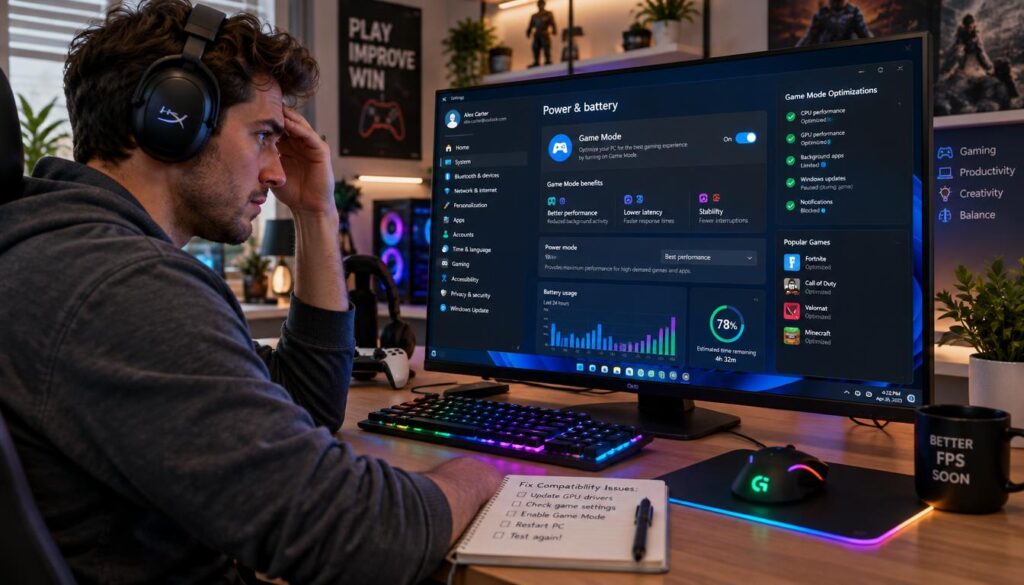
After setting your power plan, turn on Game Mode. This feature automatically gives system resources priority to the game you play. It pauses non-essential background activity, including Windows Update downloads, which can start at the worst possible moment.
Go to Settings > Gaming > Game Mode and turn on the toggle. You can also type “Turn on game mode” into Windows search and click the top result.
For more details, our guide to optimizing Game Mode explains useful additional tweaks.
Combining the High Performance plan with Game Mode gives your system two layers of support during gameplay. Many windows 11 compatibility problems disappear when your hardware can perform at full strength.
Check for Overheating and Hardware Problems
Not every crash comes from a bad driver or old software. Sometimes, your PC hardware cannot handle the load. Overheating often causes freezes or shutdowns during games. When parts get too hot, your PC may crash to prevent damage.
If you want to stop games from crashing pc-wide instead of fixing one title, check your hardware. Let’s review how to spot overheating and fix it.
Monitoring CPU and GPU Temperatures
Free tools like HWMonitor and MSI Afterburner track CPU and GPU temperatures during play. Open the program, start your game, and watch the numbers during demanding scenes.
Here is a quick guide to safe and risky gaming temperatures:
| Component | Safe Range | Warning Zone | Danger Zone |
|---|---|---|---|
| CPU | Below 70°C | 70–85°C | Above 85°C |
| GPU | Below 75°C | 75–85°C | Above 85°C |
| RAM (DDR5) | Below 45°C | 45–55°C | Above 55°C |
If temperatures often reach the danger zone, overclocking may be the hidden cause. Pushing your CPU, GPU, or RAM past factory settings adds speed and heat. Extra heat can make your system unstable.
Return all parts to stock settings if crashes continue. This matters especially when RAM uses an XMP profile. For example, lower DDR5-5600 memory to DDR5-5200 with standard timings and voltage. This small change often restores stability without noticeable performance loss.
A slight undervolt can reduce heat without losing much speed. You can also increase virtual memory, or page file size, to at least 1.5 times your total RAM. This gives Windows extra space during sudden memory spikes and may prevent crashes.
For more help with random gameplay freezes, read Microsoft’s community discussion on PCs randomly crashing while playing games. It offers troubleshooting steps from users with the same problem.
Cleaning Dust and Reapplying Thermal Paste
Dust buildup is a simple but often missed cause of overheating. Dust clogs fans, blocks airflow, and traps heat inside your case. If your PC is over a year or two old and remains uncleaned, dust may cause your crashes.
Follow these steps to clean your PC:
- Power down your PC and unplug it before opening the case.
- Use a can of compressed air to blow dust out of fans, heatsinks, and vents.
- Wipe down dust filters with a soft, dry cloth.
- Check that all case fans spin freely and aren’t obstructed.
While cleaning, consider replacing the thermal paste on your CPU and GPU. Do this only if you feel comfortable. Thermal paste dries after a few years and transfers heat less effectively.
Apply a fresh, pea-sized amount to lower temperatures. This simple fix helps your system stay cool and stable during long gaming sessions.
Update DirectX, Visual C++, and .NET Framework
A crash may come from hidden software, not your drivers or files. DirectX, Visual C++ Redistributables, and the .NET Framework support graphics, sound, and core game functions. Outdated parts can make games freeze, stutter, or close without warning.
Checking these components is a fast way to troubleshoot game crashes windows 11 systems cause. It helps most after a fresh Windows update or new game install. The fix takes minutes and costs nothing.
Installing the Latest DirectX Version
DirectX controls game graphics and audio. Most Windows 11 PCs already run DirectX 12, but outdated components may conflict with newer titles. Confirm your version before blaming another problem.
Here’s how to check and update it:
- Press Windows + R, type dxdiag, and hit Enter.
- Look at the “System” tab to see your current DirectX version.
- If it’s outdated, visit Microsoft’s official download page and install the latest package.
- Restart your PC once installation finishes.
This simple check often fixes crashes caused by graphics errors. Other solutions may miss these errors.
Updating Visual C++ Redistributables and .NET Framework
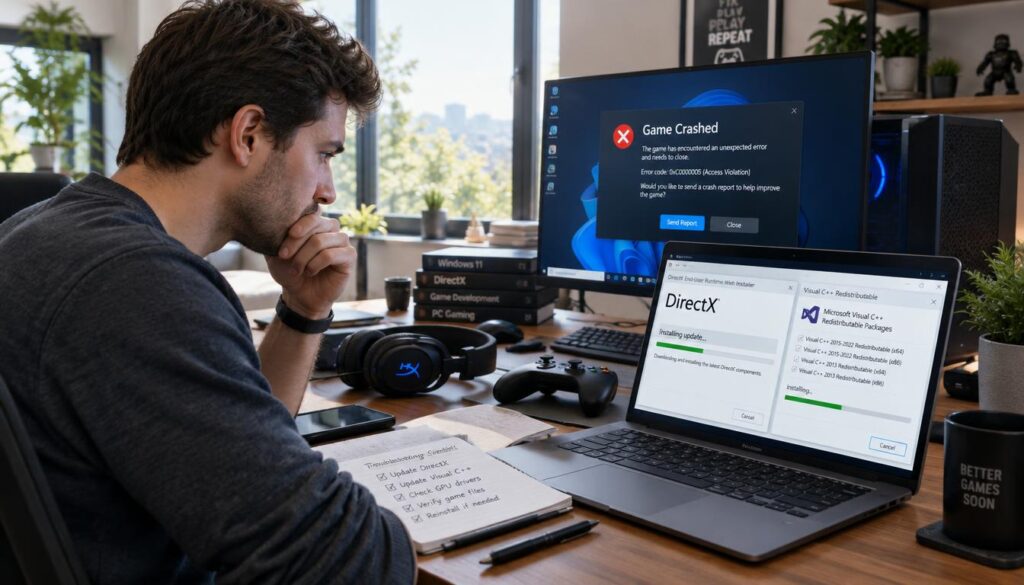
Many games need Visual C++ Redistributables, including both x86 and x64 versions. Missing either version can cause “missing DLL” or “application failed to initialize” errors during launch.
This issue can cause repeated crashes in competitive titles. Our guide on fixing the Valorant Visual C++ explains the same steps. Download Microsoft’s full redistributable package and install every listed version. This usually clears the problem within minutes.
The .NET Framework also needs attention. Open Windows Features from the Control Panel. Scroll to “.NET Framework 3.5 (includes .NET 2.0 and 3.0)” and check the box. For newer requirements, install Microsoft’s latest .NET runtime beside your existing version.
After updating these three components, restart your computer and launch the game again. This maintenance step fixes many crashes that first seem unrelated to hardware or drivers.
Conclusion
We know game crashes during matches feel frustrating, but most windows 11 game performance issues have a few fixable causes. Outdated drivers, missing updates, corrupt game files, clutter, power settings, overheating, and old runtime libraries explain most crashes discussed here.
We suggest trying these fixes one at a time, starting with simple options like updating graphics drivers. Install the latest Windows updates, then check game files or clear background programs if needed. There is no need to try everything at once.
Microsoft has shown that it takes these problems seriously. The company lifted upgrade blocks for Star Wars Outlaws, Assassin’s Creed, Avatar: Frontiers of Pandora, and Asphalt 8. It also patched the Auto HDR bug that broke games after the 24H2 update rolled out.
RGB software-triggered blue screens in Arc Raiders and The Finals are actively tracked and fixed by Microsoft through ongoing updates.
Our advice is simple: stay patient, keep your system updated, and report bugs through the Feedback Hub when you spot them. Windows 11 gaming can run smoothly when you match each problem with the right fix. We hope this guide gets you back to playing without interruptions.
FAQ
Why do I keep experiencing windows 11 game crashes even after reinstalling the game?
Reinstalling often misses the root cause. Crashes usually come from outdated GPU drivers, conflicting background software, or a known Windows-level bug, not corrupted game files. We recommend checking Windows Event Viewer first. It can show which driver or module caused the crash before you attempt a full reinstall.
What’s the fastest way to fix game crashes windows 11 systems run into during a match?
Start with the basics: update your GPU drivers, verify your game files through your launcher (Steam, Epic, or Xbox App), and close background overlays like Discord or GeForce Experience. These three steps resolve most crashes we see. They take about ten minutes total.
Is pc games freezing windows 11 related to my hardware or my software?
It can be either. Freezing often signals overheating hardware; check your CPU and GPU temperatures with HWMonitor. It may also result from an unstable overclock, a buggy driver, or a background app using your RAM. Rule out software first because it is usually quicker.
Why are games not running windows 11 smoothly even on a decent gaming rig?
This usually comes from resource conflicts, not limited hardware power. Background apps, cloud sync tools, and overlays can quietly use CPU and GPU resources meant for your game. Open Task Manager and close unnecessary processes before launching the game.
How do I know if it’s a windows 11 compatibility problems issue versus something wrong with my specific game?
If several games crash with similar errors, such as EXCEPTION_ACCESS_VIOLATION, the issue is usually system-wide compatibility. We recently saw this with the inpoutx64.sys driver conflict. It affected ARC Raiders and The Finals on Windows 11 24H2 and 25H2 builds, not the games themselves.
What steps can I take to stop games from crashing pc-wide, not just in one title?
Focus on system-level fixes, not game-specific fixes, by fully updating Windows 11. Return CPU, GPU, and RAM overclocks to stock speeds. Clean dust from your fans and heatsinks, and set your power plan to High Performance. These changes improve stability across your system, not just one game.
How can I troubleshoot game crashes windows 11 shows me through error logs?
Open Windows Event Viewer and check Windows Logs > Application for entries near the crash time. Look for the specific .dll or .sys file named in the error. It identifies the driver or program causing the crash, helping you target the fix instead of guessing.
Can outdated runtime libraries cause windows 11 game performance issues even if my drivers are current?
DirectX, Visual C++ Redistributables, and .NET Framework each handle core tasks, such as graphics rendering and audio processing. If one is outdated or missing, crashes or “missing DLL” errors can occur despite updated GPU drivers. This quick, free check is easy to overlook.
Will Microsoft eventually patch the inpoutx64 driver issue automatically, or do I need to fix it manually?
Microsoft confirmed a fix is rolling out through Windows Update, with full deployment expected in the September 2026 security update. On managed or enterprise devices with delayed updates, this guide explains a manual registry workaround. Be sure to back up your registry first.