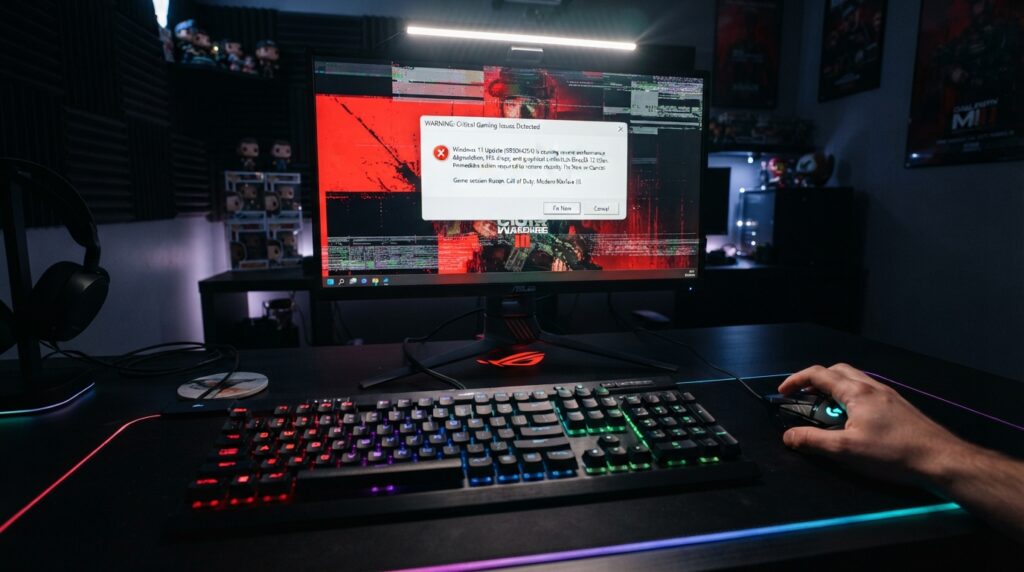
You sit down to enjoy your favorite game, but stuttering frames and slow controls ruin the experience. A routine system update can turn smooth play into a frustrating technical problem. Many players face these problems after software patches affect game performance.
Graphics, stability, and online connection problems need a calm, careful approach. We will guide you through a practical troubleshooting sequence to restore your machine’s performance. Test one change at a time to find the cause of these windows 11 gaming issues after update.
Key Takeaways
- Identify specific symptoms like frame drops or input lag before changing settings.
- Start with simple checks, such as restarting your computer and verifying file integrity.
- Check for specific driver conflicts, including known RGB software problems.
- Test individual modifications one by one to isolate the root cause effectively.
- Use recovery options or rollbacks if initial troubleshooting steps fail to resolve the situation.
Identify the Windows 11 Gaming Issue After an Update
When a windows 11 update affecting gaming changes performance, first isolate your system’s exact behavior. Determine whether the failure affects the whole system or one application.
Match Symptoms to Common Windows 11 Gaming Problems
To fix windows 11 gaming problems quickly, identify the pattern you see. Classify the issue and compare it with known signs of instability.
- Stuttering: Often linked to driver conflicts or background processes.
- Crashes to Desktop: Frequently caused by corrupted game files or incompatible overlays.
- Network Lag: Usually unrelated to system updates and points toward your router or ISP.
- Low Frame Rates: Often a sign of thermal throttling or incorrect power settings.
Check Whether the Update or a Game Caused the Change
Do not assume the operating system caused the issue. A game patch or new utility may be responsible instead.
The infamous inpoutx64 incident showed how third-party RGB software could cause system-wide crashes after a minor Windows change.
Review Windows Update History and Recent Game Patches
Check your update logs to see whether their timing matches the performance drop. If a Windows update arrived Tuesday and lag began Wednesday, you have a clear starting point.
| Event Type | Check Frequency | Impact Level |
|---|---|---|
| Windows Update | Monthly | High |
| Game Patch | Weekly | Medium |
| Driver Update | As Needed | High |
Record Frame Rate, Crashes, Lag, and Error Messages
Keep a simple log to track your progress. Record error codes, frame-drop frequency, and whether the issue affects multiple titles.
- Write down the exact time a crash occurs.
- Note if the game freezes or if the entire PC restarts.
- Capture screenshots of any error messages for later reference.
Complete Essential Checks Before Troubleshooting
A solid foundation helps resolve windows 11 gaming issues after update. Before changing system files or drivers, make sure your environment is stable and your data is secure.
These early steps help rule out simple hardware conflicts and prevent accidental data loss during repairs.
Restart Your PC and Reconnect Gaming Accessories
A simple restart often clears temporary glitches from a recent system update. Rebooting makes Windows reload hardware drivers and clear system memory.
Disconnect non-essential peripherals to isolate the problem. Follow these steps for a clean state:
- Unplug all USB devices except your mouse and keyboard.
- Perform a full restart from the Power menu.
- Reconnect your gaming headset, controller, or wheel one by one to check for conflicts.
Confirm Your Hardware Meets the Game’s Requirements
A system update can change how Windows manages resources and reveal hardware struggles. Check the official developer website to confirm your components still meet minimum requirements.
Insufficient RAM or outdated GPU drivers can cause major performance drops. If your hardware barely meets requirements, lower in-game graphics settings to keep gameplay stable.
Back Up Important Game Saves and Configuration Files
Before deep troubleshooting, protect your progress. Many games store local configuration files and save data in your Documents folder or AppData directory.
Copy these folders to an external drive or secondary partition. This lets you restore settings if a reinstall becomes necessary to fix windows 11 gaming issues after update.
Protect Cloud Saves Before Reinstalling or Resetting a Game
Most modern platforms, such as Steam or the Xbox App, use cloud synchronization to protect your progress. Still, verify that your saves synced before deleting local files.
Check your game launcher’s status icon to confirm that the latest save data is uploaded. If syncing is pending, wait until it finishes to avoid losing hours of gameplay.
Install Windows 11 and Game Updates Correctly
When an update causes problems, secondary patches or driver fixes may solve them. The first installation may not fix every conflict. A follow-up patch may soon fix bugs missed during the initial rollout.
Check for a Follow-Up Windows 11 Quality Update
Microsoft often releases small, cumulative quality updates to fix compatibility problems. These patches may fix a windows 11 update affecting gaming that caused stuttering or crashes. Open System Settings and check for pending updates.
Update Games Through Steam, Epic Games Store, or the Xbox App
Game launchers also need regular updates to work with new operating system changes. If you have windows 11 gaming issues after update, check that your game client is fully updated. Steam and the Xbox App often alert you, but you can check manually for game patches.
Install Optional Driver and Component Updates Carefully
Standard updates may skip hardware drivers needed for smooth gameplay. Review optional components for newer versions of your GPU or chipset.
Use Windows Update Advanced Options to Find Available Updates
Open the Windows Update menu and select “Advanced options” to find these hidden updates. Choose the “Optional updates” section to check for driver or firmware improvements. These updates may stabilize a windows 11 update affecting gaming through better hardware communication.
Restart Windows After Every Major Update
Always restart Windows after installing major software or driver updates. A full reboot finishes file replacements and clears temporary caches that may cause conflicts. This simple step can resolve persistent windows 11 gaming issues after update.
| Update Source | Primary Benefit | Frequency |
|---|---|---|
| Windows Update | System Stability | Monthly |
| Game Launchers | Game Compatibility | On-Demand |
| Optional Drivers | Hardware Performance | As Needed |
Repair Graphics Drivers and Display Settings
Graphics drivers often cause problems after a system update. When hardware and software stop communicating, your windows 11 gaming performance can suffer. Adjusting these settings can quickly restore your games.
Update NVIDIA, AMD, or Intel Graphics Drivers
Visit your GPU manufacturer’s official website first. Download the latest drivers directly from NVIDIA, AMD, or Intel for the most stable version. Avoid generic Windows update drivers for better compatibility with modern titles.
Roll Back a Driver That Introduced Crashes or Stuttering
The newest driver may not suit your system configuration. If instability starts after an update, return to the previous version. Open Device Manager, select your graphics card, and choose “Roll Back Driver.”
Perform a Clean Graphics Driver Installation
Use a clean install when regular updates fail to fix ongoing problems. It removes old configuration files that may cause conflicts. Starting fresh keeps your windows 11 gaming performance from suffering due to corrupted data.
Remove Conflicting Driver Software Before Reinstalling
Before installing new drivers, use a dedicated utility to remove existing files completely. Remove old control panels and background tools that could disrupt the new installation. This prevents software bloat and supports a smooth driver update.
Restore Stable Resolution and Refresh Rate Settings
Updates may reset display settings to default values, harming your visual experience. Check that your monitor uses its native resolution and highest supported refresh rate. These settings support steady windows 11 gaming performance and smooth motion in fast-paced games.
Fix Windows 11 Performance Drops and Game Lag
You can often resolve a frustrating windows 11 gaming performance issue by adjusting how your computer manages resources. When your system struggles to maintain frame rates, it usually means power settings or background tasks compete for CPU cycles. These changes can create a much smoother experience.
Choose the Best Power Mode for Gaming
Windows 11 includes built-in power plans that control how much energy your hardware uses. For best results, open Settings, then System, and finally Power & battery. Set your device to the Best performance mode. This prevents the system from throttling your hardware during intense gameplay.
Disable Unnecessary Startup and Background Applications
Background processes often use valuable RAM and CPU power, causing a noticeable windows 11 performance drop. Open Task Manager by pressing Ctrl + Shift + Esc to find apps using too many resources. Disable non-essential startup programs so your PC focuses entirely on your game.
Adjust Windows 11 Game Mode and Graphics Preferences
Game Mode is a vital feature that prioritizes gaming by pausing background updates. Features such as Memory Integrity and Virtual Machine Platform can sometimes cause stuttering. These features improve security, but test your game with them temporarily disabled to see whether frame rates improve.
Set a Game to High Performance in Graphics Settings
If your laptop has dual graphics, it might use the integrated chip instead of your dedicated GPU. Go to Settings, System, Display, and then Graphics to assign games to the High performance option. This makes Windows use your powerful graphics card during every session.
Compare Performance on Battery and AC Power
Gaming on battery power almost always lowers performance because the system limits power draw to protect the battery. Always connect your device to an AC outlet for the best windows 11 gaming performance. The following table shows how power states affect your hardware capabilities.
| Power Setting | CPU Clock Speed | GPU Utilization | Gaming Impact |
|---|---|---|---|
| Best Power Efficiency | Low | Limited | High Stuttering |
| Balanced | Variable | Moderate | Occasional Lag |
| Best Performance | Maximum | Full | Optimal FPS |
Resolve Windows 11 Game Crashes and Freezes
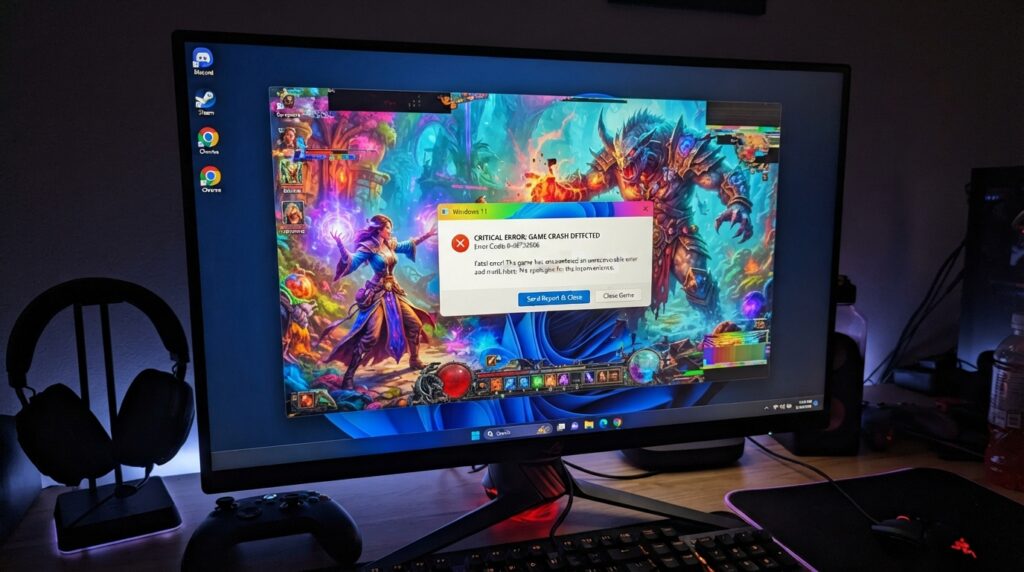
If titles like The Finals or Fighting Souls keep freezing, you are not alone. Sudden windows 11 game crashes after an update can ruin your gaming time. Most problems come from minor file corruption or permission conflicts, which you can fix quickly.
Verify Game Files in Steam, Epic Games Store, and the Xbox App
First, check that your game installation is complete. Game launchers include tools that find missing or damaged files and may prevent crashes.
- Steam: Right-click your game, select Properties, go to Installed Files, and click Verify integrity of game files.
- Epic Games Store: Click the three dots next to your game title and select Manage, then click Verify.
- Xbox App: Select the game, click the three dots, choose Manage, and then select Files followed by Verify and Repair.
Run the Game With the Correct Permissions
A game may lack permission to write data to your drive, causing an EXCEPTION_ACCESS_VIOLATION error. Granting the game administrative access can fix this problem.
Right-click the game’s executable file or desktop shortcut, then select Properties. Open the Compatibility tab and check the box labeled “Run this program as an administrator.” This change often stops windows 11 game crashes by letting the game access restricted system folders.
Clear Shader Caches and Rebuild Corrupted Game Data
Your computer stores temporary shader files to help games load faster. If an update corrupts these files, your game may freeze or crash during intense scenes.
Clear the DirectX Shader Cache Without Deleting Personal Saves
Use the Windows Disk Cleanup tool to remove these files safely. Open the Start menu, type “Disk Cleanup,” and select your primary drive.
Check the box for “DirectX Shader Cache” and click OK to delete the temporary files. This process will not affect your personal game saves or configuration settings, which remain in different directories.
Test the Game With Mods, Overlays, and Add-ons Disabled
If the game still fails, third-party modifications or overlays may cause the problem. Disable all active mods and external software overlays before launching the game again.
Test a clean installation to learn whether your system or incompatible add-ons cause the issue. If the game runs smoothly, re-enable the extras one at a time. You can identify the specific file causing the windows 11 game crashes.
Eliminate Windows 11 Gaming Bugs Caused by Overlays
Background software often triggers unexpected windows 11 gaming bugs. These tools offer useful features, such as chat and frame rate monitoring, but may cause instability.
Disable Xbox Game Bar and Background Capture
The built-in Xbox Game Bar can interfere with performance. Turn it off through Windows Settings under the Gaming tab.
Turn off the “Record what happened” feature and background capture. Disabling these background processes frees system resources and prevents conflicts during intense gameplay.
Turn Off Steam, Discord, NVIDIA, and AMD Overlays
Launcher and chat overlays often cause sudden crashes. Check Steam, Discord, and your graphics software settings, then disable these features.
- Disable the “In-Game Overlay” within Steam settings.
- Turn off the Discord overlay in the “Game Overlay” tab.
- Deactivate NVIDIA GeForce Experience or AMD Adrenalin overlays.
Test Third-Party Monitoring and RGB Utilities
Monitoring tools and RGB software communicate with hardware and may trigger windows 11 gaming bugs. Microsoft says some RGB components can freeze games or block launches after updates.
If you control keyboard or case lighting with software, close it before starting a game. Always keep a registry backup before changing advanced settings, and remove drivers only when necessary.
Re-enable Each Overlay Individually to Find the Conflict
After your game runs smoothly, turn your tools back on one at a time. This helps identify the application causing the issue.
If a crash follows one overlay, you found the culprit. You may need to wait for a developer update to restore full compatibility.
Keep Only the Tools You Need While Gaming
For the best performance, limit your background software. Running many utilities at once increases the risk of conflicts.
Keep only essential tools active for a more stable experience. This habit helps prevent future windows 11 gaming bugs and keeps your system efficient.
Improve Network Problems Behind Online Gaming Lag
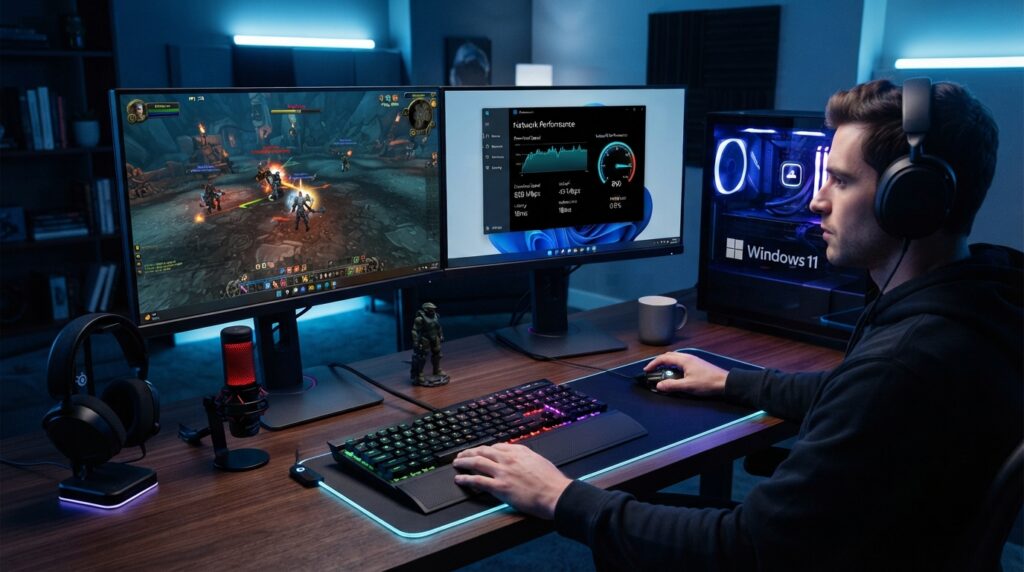
First, separate low frame rates from network lag for a smoother gaming experience. Stuttering may suggest failing hardware, but poor data transmission between your PC and game server may cause it.
A windows 11 gaming lag fix starts by showing whether the problem is local or external. If your frame-time graph stays flat but your character is “rubber-banding,” network latency is likely, not a graphics card bottleneck.
Separate Internet Lag From Low Frame Rate Stuttering
Low frame rates create choppy visuals that affect every movement on your screen. Network lag causes delayed inputs or odd character movement while the environment stays smooth.
If you suspect network trouble, check your game’s built-in performance overlay. Ping spikes or packet loss show that changing graphics settings will not solve the problem.
Update Network Drivers and Restart Your Router
Outdated network drivers can create unstable connections on Windows 11. Visit your motherboard or laptop manufacturer’s website for current Ethernet or Wi-Fi adapter drivers.
A simple router power cycle can clear temporary cache issues. Unplug it for thirty seconds, then reconnect it to refresh your internet service provider connection.
Use a Wired Connection or Improve Wi-Fi Stability
Wireless signals face interference from walls and household electronics. Whenever possible, use a wired Ethernet connection for the most stable path during games.
- Move your router closer to your gaming PC.
- Switch to the 5GHz band if your router supports it.
- Minimize the number of devices connected to your network during peak gaming hours.
Check Ping, Packet Loss, and Server Status
High ping shows a communication delay, while packet loss means data is dropped. Check the developer’s official social media or status page for a game server outage.
Pause Downloads and Cloud Synchronization During Matches
Background processes can quickly use all your bandwidth. Make sure Steam, Epic Games, or Windows Update are not downloading files while you play.
Disabling cloud synchronization for game saves during a match can prevent sudden traffic spikes. Applying this effective windows 11 gaming lag fix keeps your bandwidth dedicated to your gaming session.
Check Windows Security, Virtualization, and Compatibility Features
Advanced security features in Windows 11 can sometimes conflict with your favorite games. These tools protect your system but may trigger windows 11 gaming bugs that reduce performance. Adjust these settings carefully to balance protection and playability.
Review Windows Security and Firewall Game Permissions
Your firewall guards your internet connection. If it wrongly flags a game as a threat, you may face connection drops or launch failures.
Allow Legitimate Game Executables Through Microsoft Defender Firewall
You can manually allow your games through these restrictions. Open Windows Security, select Firewall & network protection, and choose “Allow an app through firewall.” Check your game executable for both private and public networks to fix common windows 11 gaming bugs.
Test Memory Integrity and Virtualization-Based Security Carefully
Memory Integrity and Virtual Machine Platform protect your system from malicious code. However, they may interfere with game engines that need low-level hardware access.
Restore Security Features After Testing When Possible
If you disable these features for testing, do so only temporarily. Always re-enable them after your gaming session to protect your system. Leaving them off permanently increases your risk from modern threats.
Use Compatibility Settings for Older Windows Games
Older titles may struggle with the latest operating system. You can run these games in a legacy environment to improve stability.
Right-click your game shortcut, select Properties, and open the Compatibility tab. You can run it in compatibility mode for Windows 8 or 7.
| Feature | Gaming Impact | Recommended Action |
|---|---|---|
| Memory Integrity | High (Performance) | Toggle off only for testing |
| Firewall | Medium (Connectivity) | Add game exceptions |
| Compatibility Mode | Low (Stability) | Use for older titles |
Checking these settings can often remove persistent windows 11 gaming bugs without weakening your PC’s overall safety. Restart your computer after major changes so all system policies update correctly.
Reduce Heat, Throttling, and Hardware-Related Performance Issues
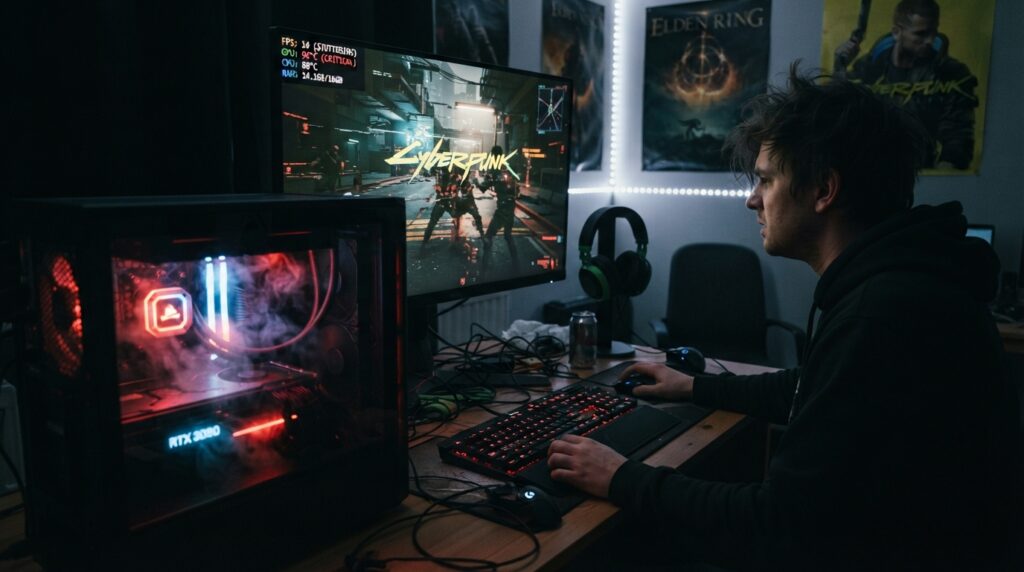
If your gaming rig feels slow after an update, check your hardware health. A persistent windows 11 performance drop may come from physical hardware, not software. Struggling components can throttle performance to prevent permanent damage.
Monitor CPU, GPU, and System Temperatures During Gameplay
High temperatures often cause sudden frame rate dips. Use monitoring tools like HWMonitor or MSI Afterburner while you play. If your CPU or GPU exceeds 85°C, thermal throttling will likely cool the system.
Improve Airflow and Clean Dust From the Gaming PC
Dust buildup traps heat inside your case and blocks needed airflow. Clean your fans, heatsinks, and air filters regularly with compressed air. Ensuring proper ventilation helps your hardware run at peak efficiency.
Check Storage Space, Drive Health, and Memory Usage
A windows 11 performance drop can also result from a struggling storage drive. Windows updates need significant free space, often more than the standard 20 GB baseline. Check drive health with built-in tools to ensure your SSD or HDD is not failing.
Move Games to a Healthy SSD With Enough Free Space
Games on nearly full drives often load assets slowly and stutter. Move your library to a healthy SSD with at least 15% free space to improve load times. Prioritizing high-speed storage for favorite titles supports a smooth experience.
Stop Using Overclocking Settings While Diagnosing Instability
Overclocking your CPU, GPU, or RAM can push hardware past stable limits. If crashes occur, immediately restore your BIOS and software settings to default values. Testing stock speeds shows whether aggressive tuning caused the instability, rather than a windows 11 performance drop.
Roll Back or Repair Windows 11 When Other Fixes Fail
When standard fixes fail to stop crashes, consider these advanced recovery steps. Persistent windows 11 game crashes may result from deep system conflicts. Try these steps only after exhausting every other troubleshooting option.
Uninstall a Problematic Quality Update
If gaming performance drops right after an update, removing that update may help. Open Update History in Settings and find the most recent installation. Choose Uninstall updates to return your system to its earlier state.
This process often fixes sudden windows 11 gaming problems caused by compatibility regressions. Ensure you have a stable internet connection before rolling back system files. If problems continue, pause future updates until Microsoft releases a patch.
Use System Restore or Windows Recovery Options
System Restore returns your computer to a time when it worked properly. This tool helps when a new driver or software change causes instability. It reverses system changes without affecting your personal documents.
For severe issues, Windows Recovery Environment offers startup repair tools. These utilities can fix corrupted boot files that interfere with gaming. Always create a manual restore point before advanced registry changes, giving you a safety net.
Reset Windows 11 Only After Protecting Your Files
A full system reset is the final option when other repair methods fail. Before starting, back up all your important game saves, configuration files, and personal data to an external drive or cloud storage. Never skip this step, because a reset removes installed applications.
After securing your data, choose the option that keeps your files while reinstalling the operating system. This clears corrupted system data but preserves your user profile. It reliably removes deep software bugs that cause frequent windows 11 game crashes.
Know When to Contact Microsoft, the Game Developer, or Hardware Support
Sometimes, the cause lies outside your control. If a clean install does not solve the issue, ask the game developer about specific patches. Contact Microsoft support when operating system corruption remains after recovery tools run.
Contact hardware manufacturers if you suspect your GPU or RAM is failing. Clear information will help them resolve the problem faster. Check official forums for similar reports from other users.
Document Error Codes and Troubleshooting Results
Before contacting support, create a detailed log of your efforts. Record each error code, your graphics driver version, and the exact game name. This helps technicians determine whether your windows 11 gaming problems are unique to your setup.
List every troubleshooting step you have tried. This keeps support agents from repeating suggestions. Good organization saves time and gets you back to favorite games faster.
Conclusion
You now have a clear plan for fixing performance issues after a system update. Track your symptoms and secure your game data before major changes.
A reliable windows 11 gaming lag fix requires a careful process. Verify game files, update graphics drivers, and isolate background overlays affecting frame rates.
Microsoft recommends keeping your operating system and game clients current to prevent compatibility gaps. If performance stays poor, check network stability and review security settings for possible conflicts.
If these local steps fail, contact the game developer or hardware manufacturer for specific support. You can also use Windows recovery tools to return to a stable state. With patience and proper troubleshooting, your gaming setup will regain peak performance.
FAQ
How can I implement a windows 11 gaming lag fix if my online matches are stuttering after an update?
First, determine whether the lag comes from your network or a hardware windows 11 performance drop. If your ping is high, switch from Wi-Fi to a wired Ethernet connection and restart your router. If the “lag” is visual stuttering, set Windows 11 Power Mode to “Best Performance.”
Then pause background downloads in the Xbox App or Steam.
Why am I experiencing sudden windows 11 game crashes when launching titles like Fighting Souls or The Finals?
A windows 11 update affecting gaming can corrupt your shader cache or conflict with existing game files. Use the “Verify Integrity of Game Files” feature in Steam or the Epic Games Store to repair damaged data. Also, clear the DirectX Shader Cache via Disk Cleanup to resolve persistent windows 11 gaming problems that cause desktop crashes.
Are there any known windows 11 gaming bugs related to RGB lighting software?
Yes, Microsoft has documented cases where RGB-related drivers, including those with filenames like inpoutx64, cause system instability and crashes after certain updates. If you encounter windows 11 gaming issues after update, temporarily disable or update your peripheral software. This includes ASUS Armoury Crate, Razer Synapse, or Corsair iCUE, to see if performance stabilizes.
Will disabling security features like Memory Integrity improve my windows 11 gaming performance?
Features such as Memory Integrity (VBS) and the Virtual Machine Platform provide essential security. However, they can cause a windows 11 performance drop on some hardware configurations. You can test your frame rates with these features turned off to see whether they are the culprit.
Microsoft recommends re-enabling them afterward to protect your system from malicious code.
What is the best way to handle a windows 11 performance drop that started immediately after a patch?
Your first step should be a clean installation of your graphics drivers. Download the latest version directly from NVIDIA, AMD, or Intel, and use their official tools to remove old driver remnants. If the problem persists, check your Windows Update History.
Consider uninstalling the most recent “Quality Update” or using System Restore to return to a stable state.
How do I know if my windows 11 gaming problems are caused by my hardware or the OS?
Monitor your CPU and GPU temperatures with tools like MSI Afterburner to rule out thermal throttling. Windows updates require significant resources; ensure your SSD has at least 20GB of free space beyond the game’s requirements. If your hardware meets the game’s recommended specs, but windows 11 gaming bugs continue, the issue is likely software-based.
It may involve a conflicting Xbox Game Bar overlay or a corrupted Windows component.
Can a windows 11 update affecting gaming be fixed without reinstalling the entire operating system?
Absolutely. Most windows 11 gaming issues after update can be solved by checking your settings for “Optional Updates.” These updates often contain specific hardware compatibility fixes. You should also ensure your BIOS and chipset drivers are up to date.
Use a full Windows 11 Reset only as a final resort. Back up your local saves and configuration folders first.